Overview
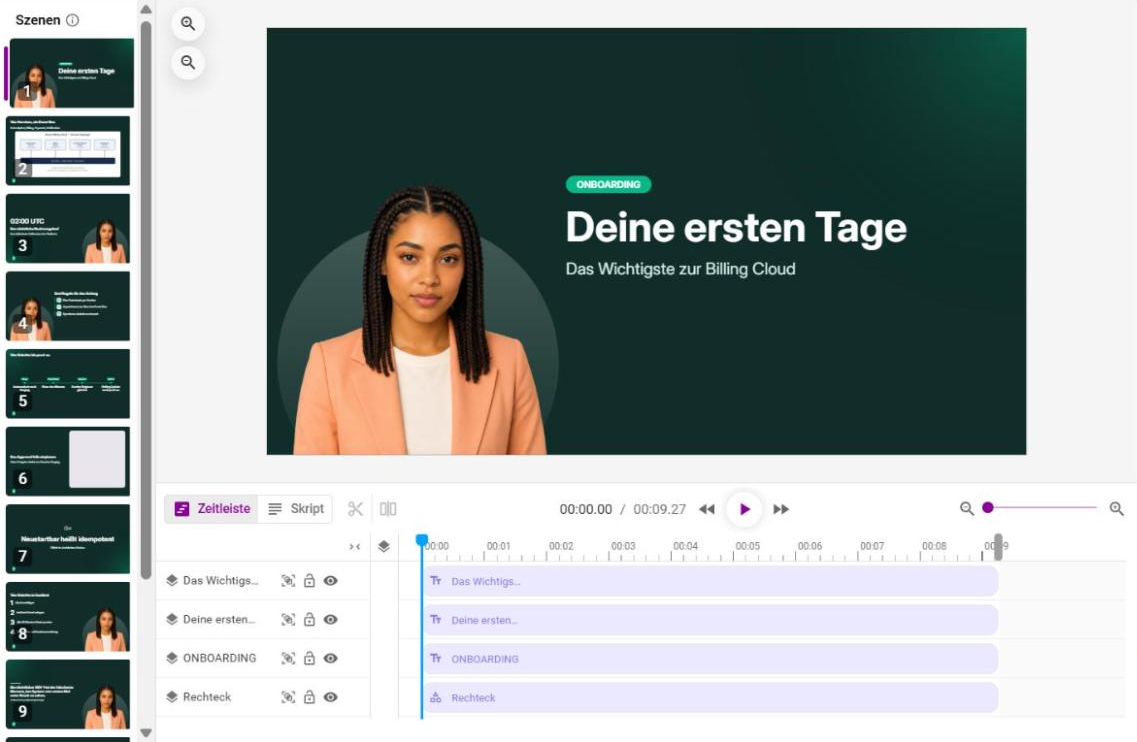
The timeline at the bottom of the editor sets when each element of a scene appears and disappears. Here you cut clips, split scenes, tie elements to spoken words, add animations and set chapters. The switch above the timeline toggles between Timeline and Script, the view for the speaker text.
Step 1: Work with tracks
- Each element has its own track. Drag clips to a new position and trim their edges. Clips snap to other elements.
- Select several clips at once and move them together.
- Reorder and rename tracks. The track icons hide, mute or lock a track.
- The scene length follows the last element. Drag the scene end or use Fit timeline to content.
- The slider on the right zooms the timeline; drag its top edge to make it taller.
Step 2: Cut and split scenes
- Split track cuts the selected video or audio clip at the playhead into two clips.
- Split scene splits a scene in two at a joint between videos.
Step 3: Time your elements
In an element's settings, enter Start, End or Duration. In scenes with an AI speaker you can also tie an element to a word in the speaker text. With word markers it appears or disappears exactly at that word, even if the text changes later.
Step 4: Add animations
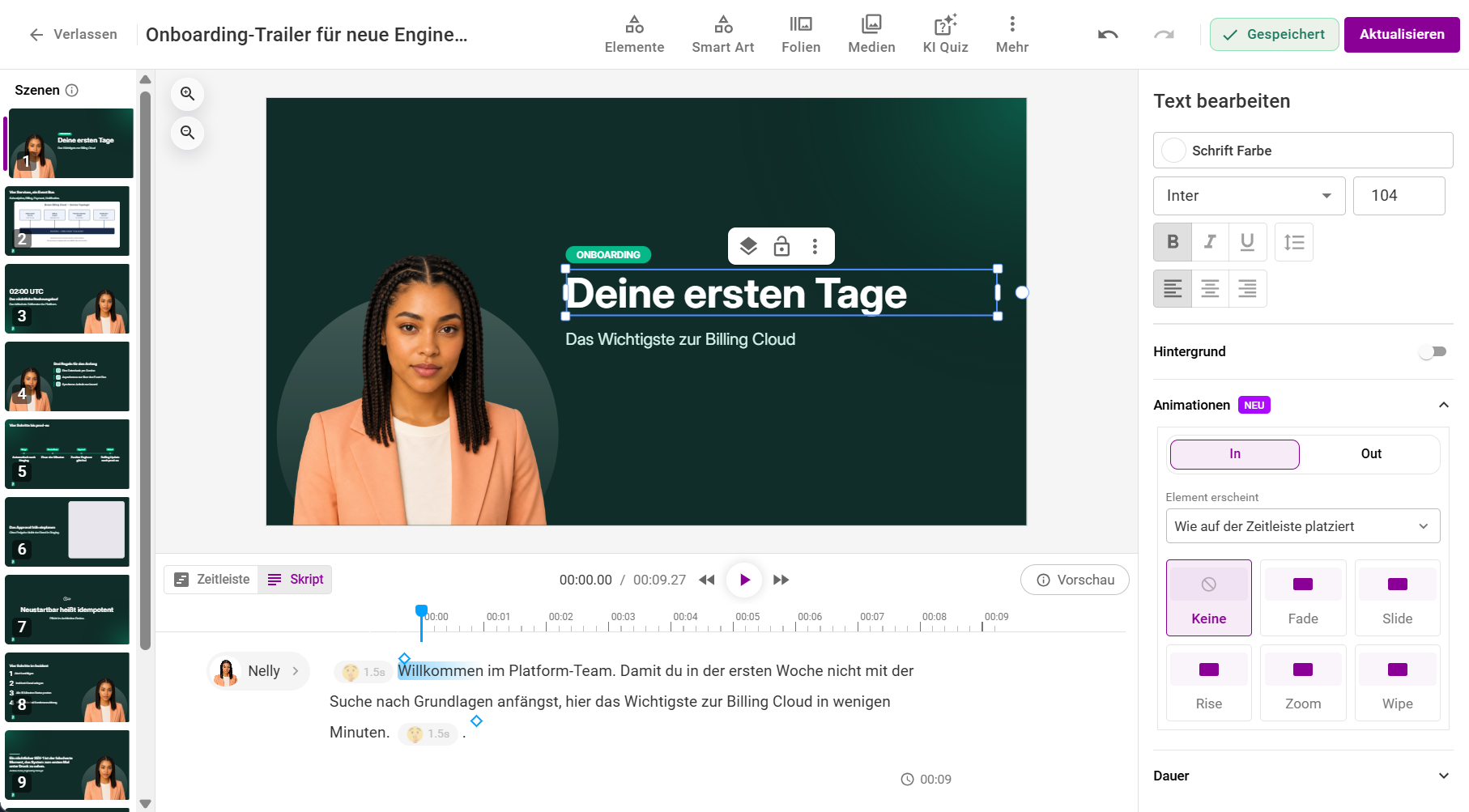
- Select an element, for example a text or the avatar.
- Open the Animations section on the right. Under In choose how the element appears, under Out how it disappears: None, Fade, Slide, Rise, Zoom or Wipe. Element appears is set to As placed on the timeline by default.
- Set direction (for Slide and Wipe), duration and delay. The element plays a preview.
- If needed, apply the animation to all objects in the scene.
Animations show in the editor, the player and the exported video.
Step 5: Add chapters
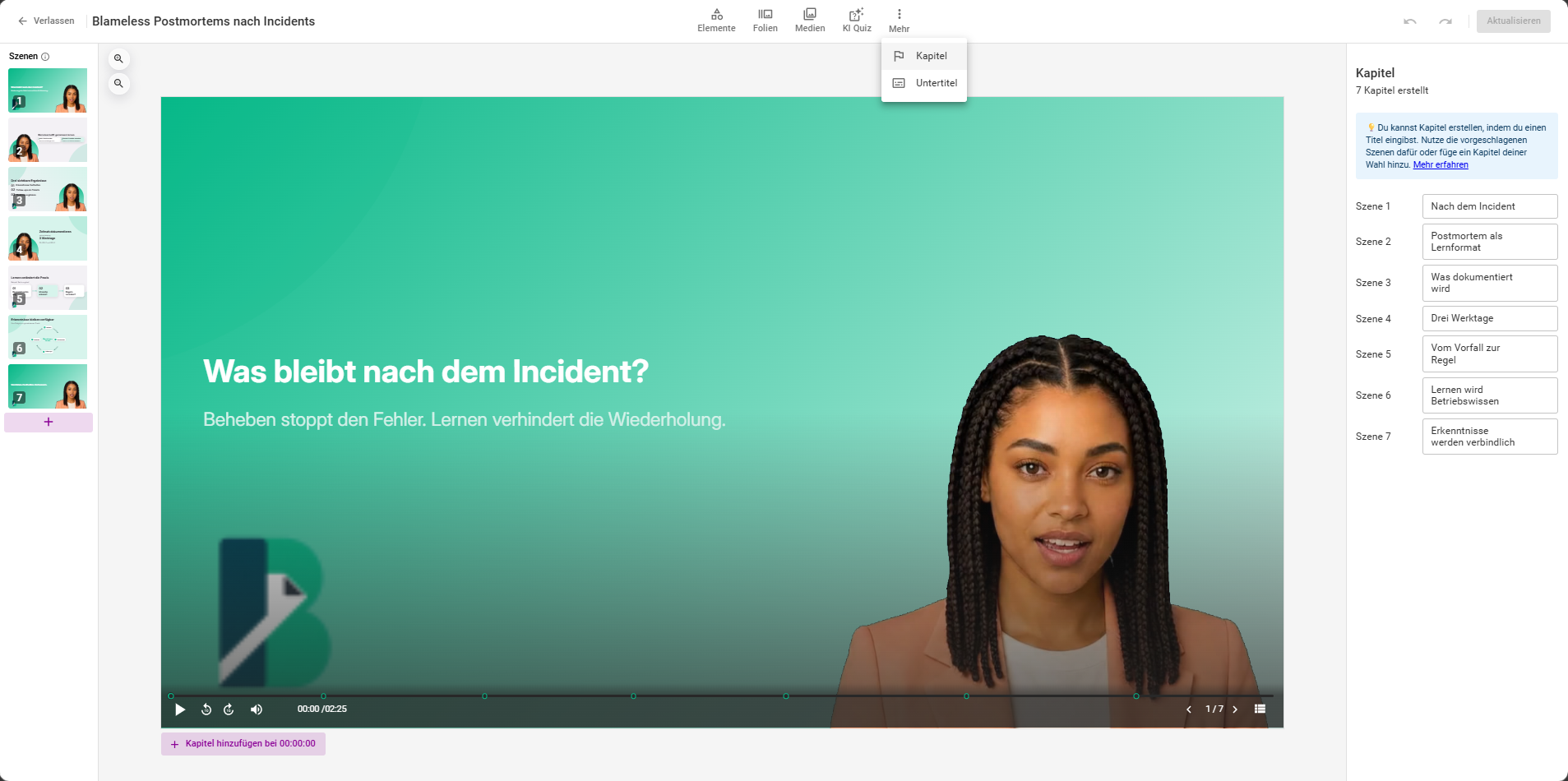
- Open More › Chapters at the top.
- Every scene has a row. Entering a title makes that scene start a chapter. Scene 1 is always a chapter.
- Add chapter sets a chapter at the playhead, also in the middle of a scene.
Viewers jump between chapters in the player. A quiz answer can also redirect to a chapter.
Frequently asked questions
Why can't I put two clips on top of each other?
Clips on the same track can't overlap. On different tracks they can, so several videos can play at once.
Why can't I cut the AI speaker?
Clips with an AI speaker can't be trimmed or split. Change the speaker text instead.
Are there transitions between scenes?
No. Animations work on individual elements, not on the change between scenes.
How short can a clip be?
At least 0.25 seconds, also after cutting.
Where is the cut-out function?
The function for cutting a region out of a clip no longer exists. Split the clip with Split track and delete the part you don't need.
Questions? Send us a message, we are happy to help!