Overview
After the start, Omnora keeps planning your initiative. As the initiative's manager you follow progress and steer through the target picture, participants and documents. The initiative's managers and users with the Manager role in your organization can steer it.
Step 1: Follow progress
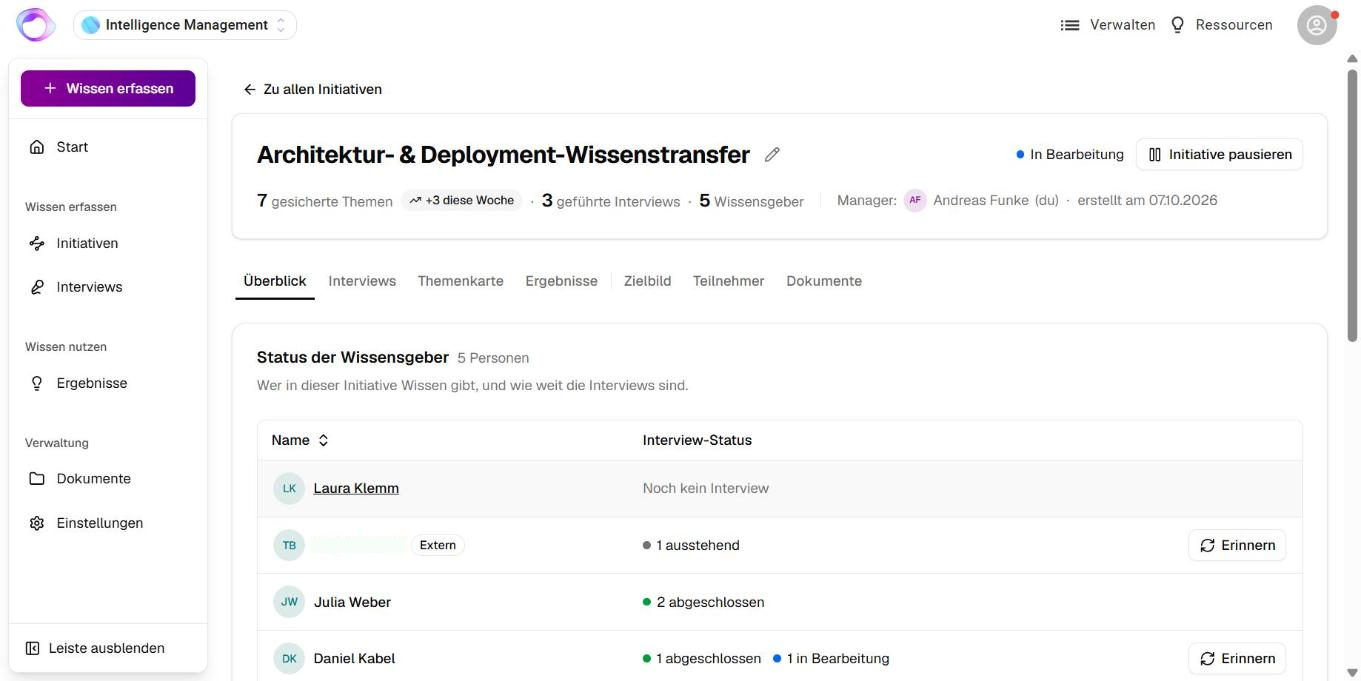
The Overview tab shows secured topics (with this week's growth), interviews conducted and the number of knowledge givers.
- Knowledge giver status lists every person with their interviews. People without an account carry an External badge.
- Remind sends a reminder to a knowledge giver with an open interview, optionally with a personal message.
- Latest activity shows the most recent events. Steps Omnora took itself are labelled “Omnora”. Show more opens the full history.
Step 2: Understand how Omnora plans
Every completed interview, every document added or removed and every change to the initiative starts a planning round. Omnora then decides who to interview next, which results the knowledge can already support and when capturing is complete.
- While planning runs, the initiative header reads Planning next steps….
- Managers receive an email with the news after each round.
- Planned interviews appear as AI Suggestion. If a planned interview does not fit, the knowledge giver can decline it with a reason. Omnora then plans again.
Step 3: Adjust the target picture and guidance
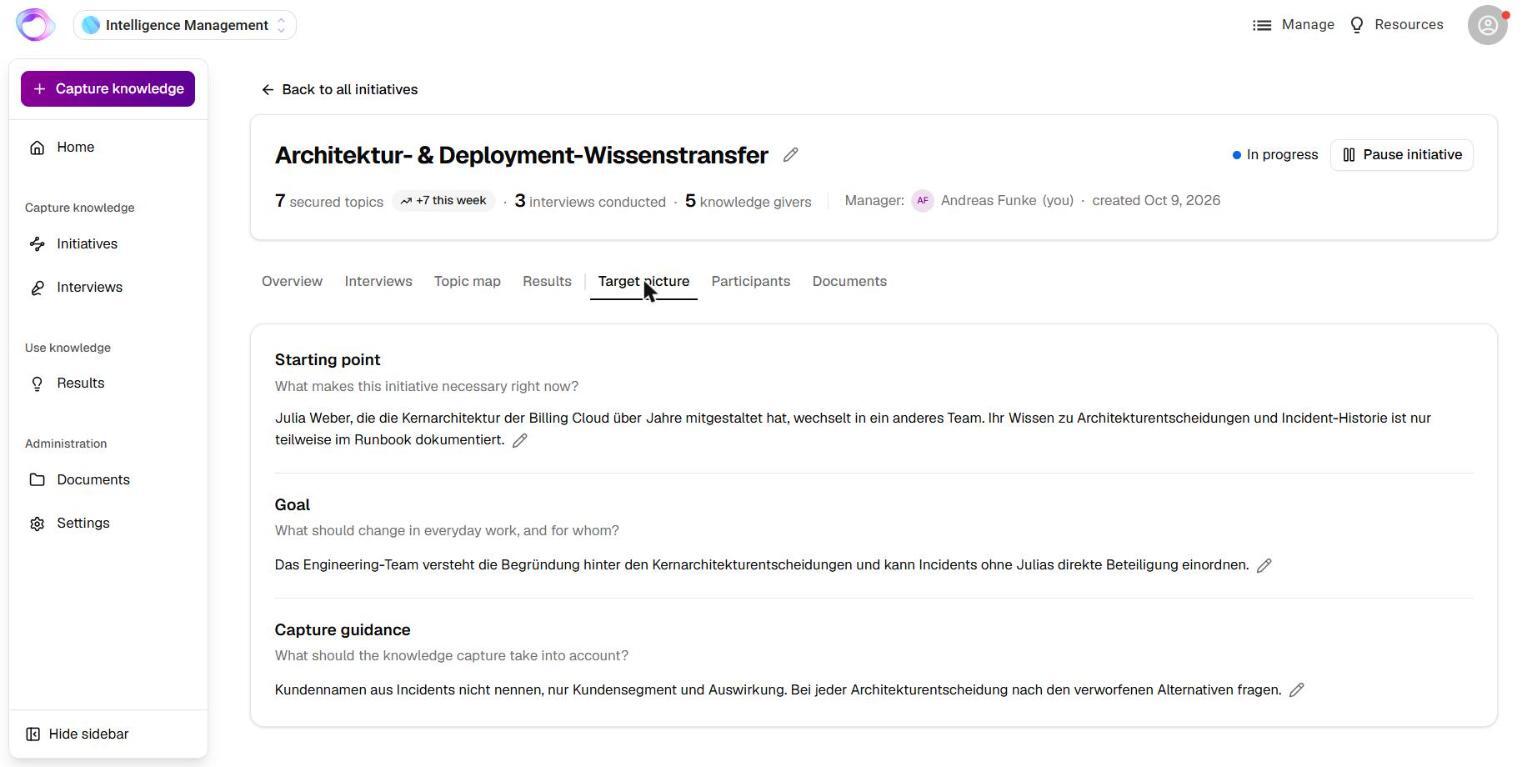
- Open the Target picture tab.
- Change the starting point with Edit starting point, the goal with Edit goal or the capture guidance with Edit guidance. Guidance is standing direction for the capture, for example to refer to customers only in general terms.
- Change the title and description with the pencil in the initiative header.
Every change starts a new planning round.
Step 4: Manage participants and documents
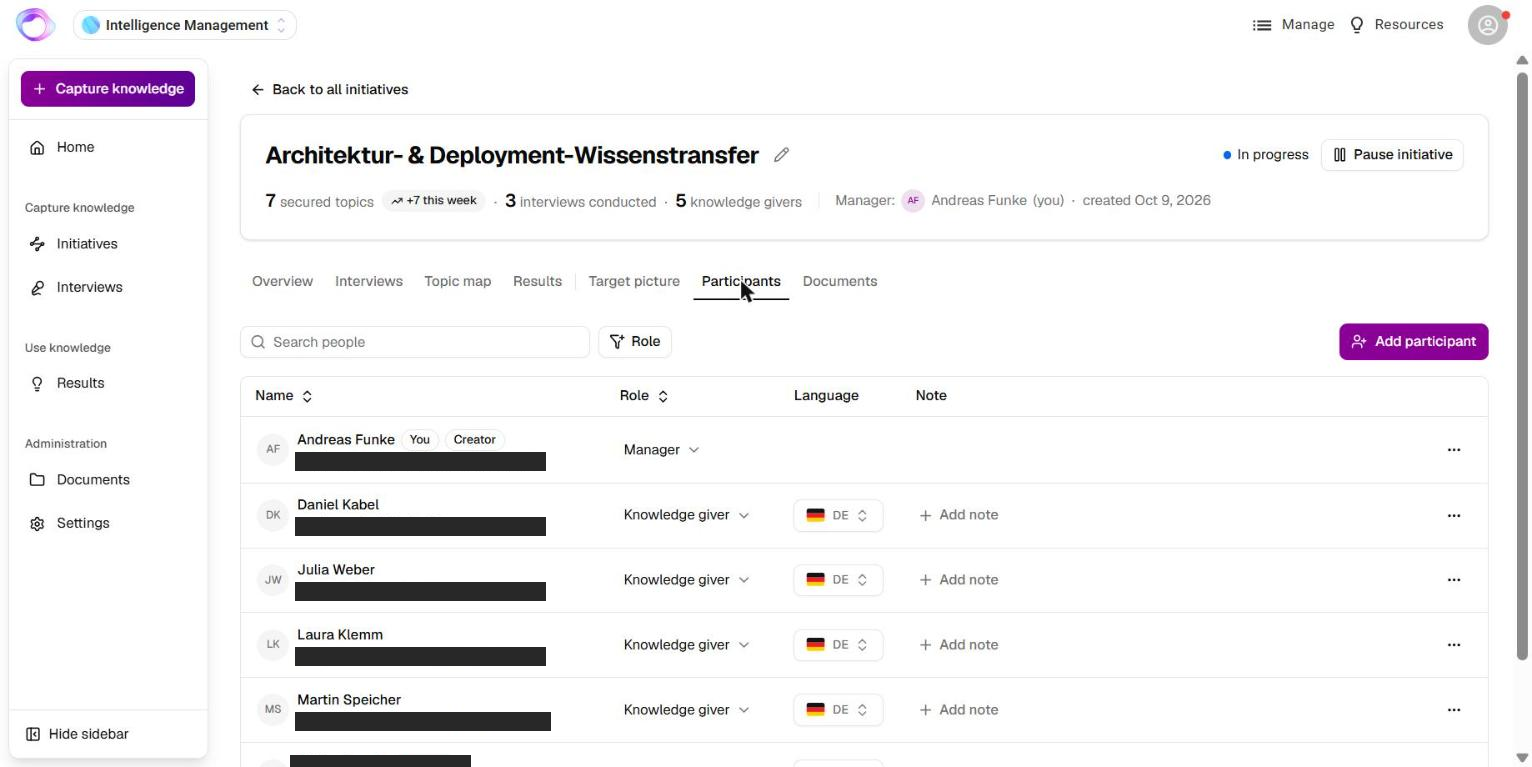
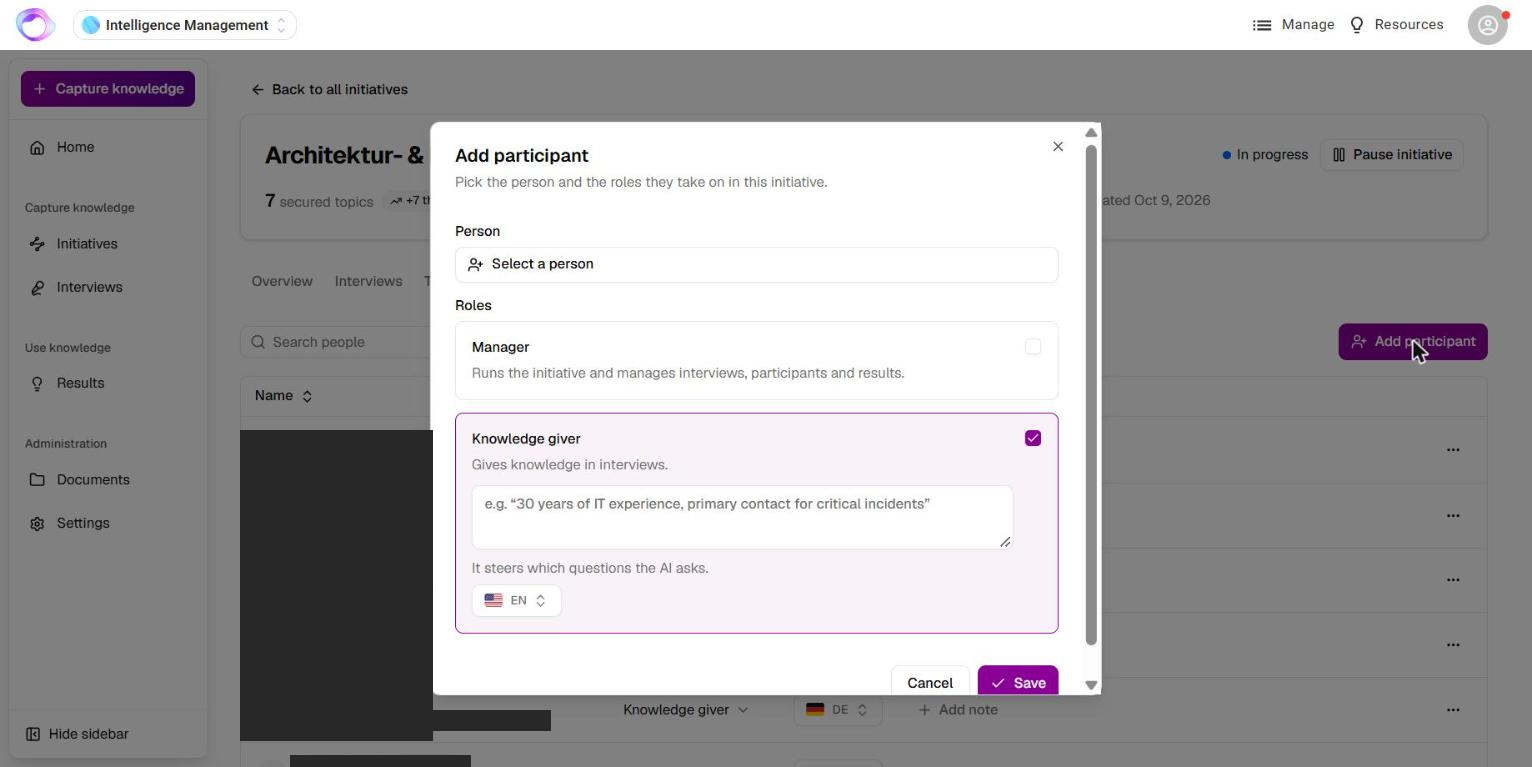
- Open the Participants tab and click Add participant.
- Pick a person with an account or add a New person with name and email address.
- Choose the roles Manager and/or Knowledge giver, the interview language and a note on what the person knows.
Remove from initiative takes a person out. Knowledge already captured stays. In the Documents tab, Add documents adds further sources; in the Interviews tab you can create an interview for a knowledge giver yourself.
Step 5: Read the topic map
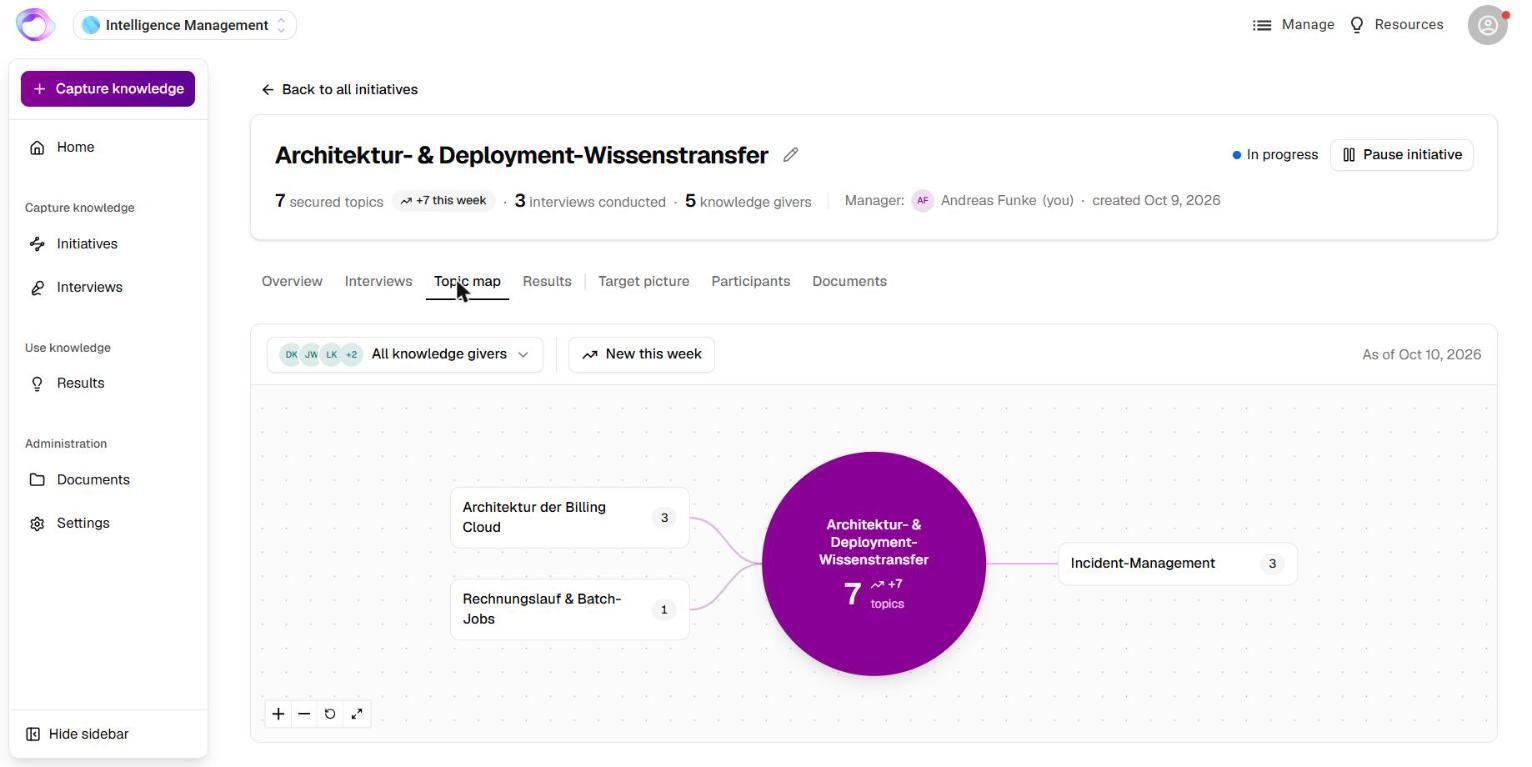
The Topic map tab shows which topics the interviews have covered so far, for all knowledge givers or for one person. Click a topic to see who contributed to it. The secured-topics figure on Home counts the same topics.
Step 6: Pause, continue, complete or delete
- Pause initiative: Omnora plans nothing new while the initiative is paused.
- Continue initiative: reopens a paused or completed initiative and starts a planning round.
- Complete initiative: marks the goal as reached. Omnora can also complete an initiative itself once the knowledge is secured.
- Delete initiative: removes the initiative with its interviews and results. Booked interview meetings are cancelled; documents stay in the library. This cannot be undone.
Frequently asked questions
Omnora doesn't propose another interview. What can I do?
Omnora then considers the knowledge sufficient for the goal. Sharpen the goal in the Target picture tab: describe what someone should be able to do after the capture, and ask for several examples per role, for instance. The change starts a new planning round. You can also create an interview yourself in the Interviews tab.
Who can steer an initiative?
The initiative's managers (whoever created it is always a manager) and users with the Manager role in your organization. The Manager role in an initiative is only for people with an account.
What can knowledge givers do in an initiative?
Knowledge givers hold their interviews, start their next interview directly from the overview and can maintain the initiative's documents and results.
I can't find my initiative any more.
Check the search and filters in Initiatives, for example My initiatives and the status. If you still can't find it, contact support and name the initiative.
Questions? Send us a message, we are happy to help!