Overview
Authoring Automation and Intelligence Management use the same sign-in page. You sign in with your email address and password or, if your company has set it up, with your company account. Depending on your company, further steps follow, for example an SMS code.
Step 1: Sign in with email and password
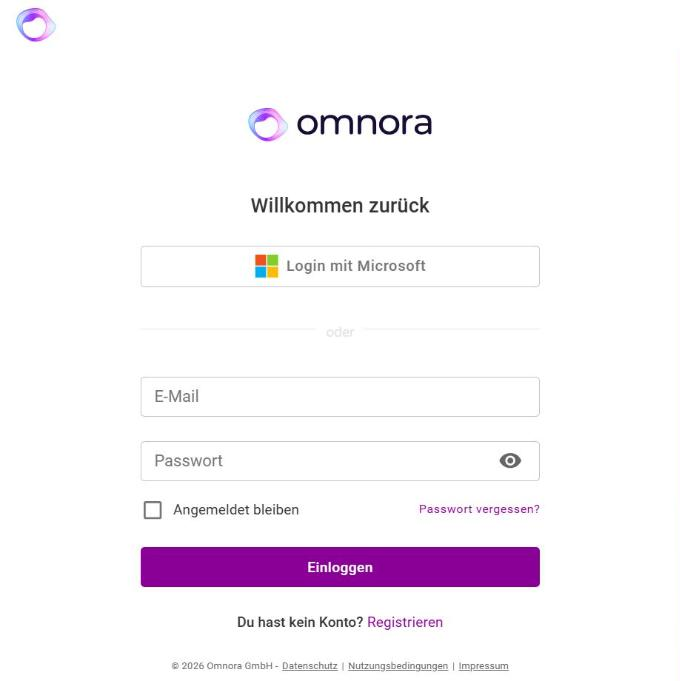
- Open Omnora. If you are not signed in, you land on the Login page.
- Enter Email and Password and click the login button.
- Tick Remember me to stay signed in longer on this device.
After signing in you return to the page you wanted to open. On the sign-in page you also choose the interface language: English, German or French.
Step 2: Sign in with your company account
If your company has set up single sign-on, click Login with Microsoft or the button with your provider's name and sign in there. Your Omnora account is created automatically at the first sign-in. If your company allows single sign-on only, you don't see a password field.
Step 3: Reset a forgotten password
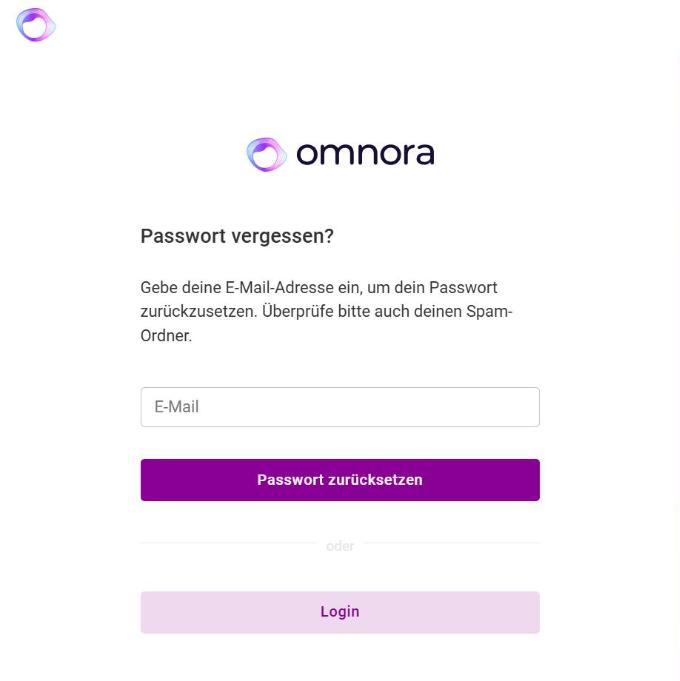
- On the sign-in page, click Forgot your password?.
- Enter your email address. You get a link by email. It is valid for 24 hours.
- Set a new password through the link.
If you were invited, you set your first password the same way through the link in the invitation (Setup your password).
Further steps depending on your company
- Two-factor authentication: At the first sign-in you enter your mobile number and confirm it with a code. After that you enter the SMS code at every sign-in with password. The code has 6 digits and is valid for 5 minutes. After 30 seconds you can get a new one with Request a new code.
- Password expiry: A password is valid for 90 days. You get a reminder by email 2 days before. The new password must differ from the old one.
- Terms of use: If your company has its own terms of use, you confirm them once before the first sign-in. You can read them again later in Settings with Show terms of use.
- Allowed IP addresses: If your company has limited sign-in to certain networks, you can only sign in from there.
Password and session rules
- A password has at least 12 characters with a lowercase letter, an uppercase letter, a number and a special character.
- Without Remember me the session ends after 30 minutes without activity, with it after 14 days. Running uploads and recordings keep the session open. Remember me does not apply to single sign-on.
Frequently asked questions
I see a message about too many login attempts. What now?
After more than 15 failed attempts within 15 minutes, sign-in is blocked for a short while. Wait a little and try again, or reset your password with Forgot your password?.
I see “This account is no longer active”.
Your account has been deactivated. Contact the person who manages users in your company.
The reset email doesn't arrive.
Check your spam folder and whether you entered the email address of your Omnora account. If nothing arrives, write to us in the chat.
I can't find my invitation any more.
Ask the person who manages users in your company to send the invitation again.
Can I switch off two-factor authentication?
No. You change your mobile number in Settings. If you no longer have access to your old phone, write to us in the chat.
Do I need a separate sign-in for Intelligence Management?
No. You sign in once and switch between the products at the top left.
Questions? Send us a message, we are happy to help!