Overview
A scene is a section of your video that you edit on its own, for example a slide with its speaker text. You see the scenes on the left of the editor in the Scenes list. One click opens a scene.
Step 1: Add a scene
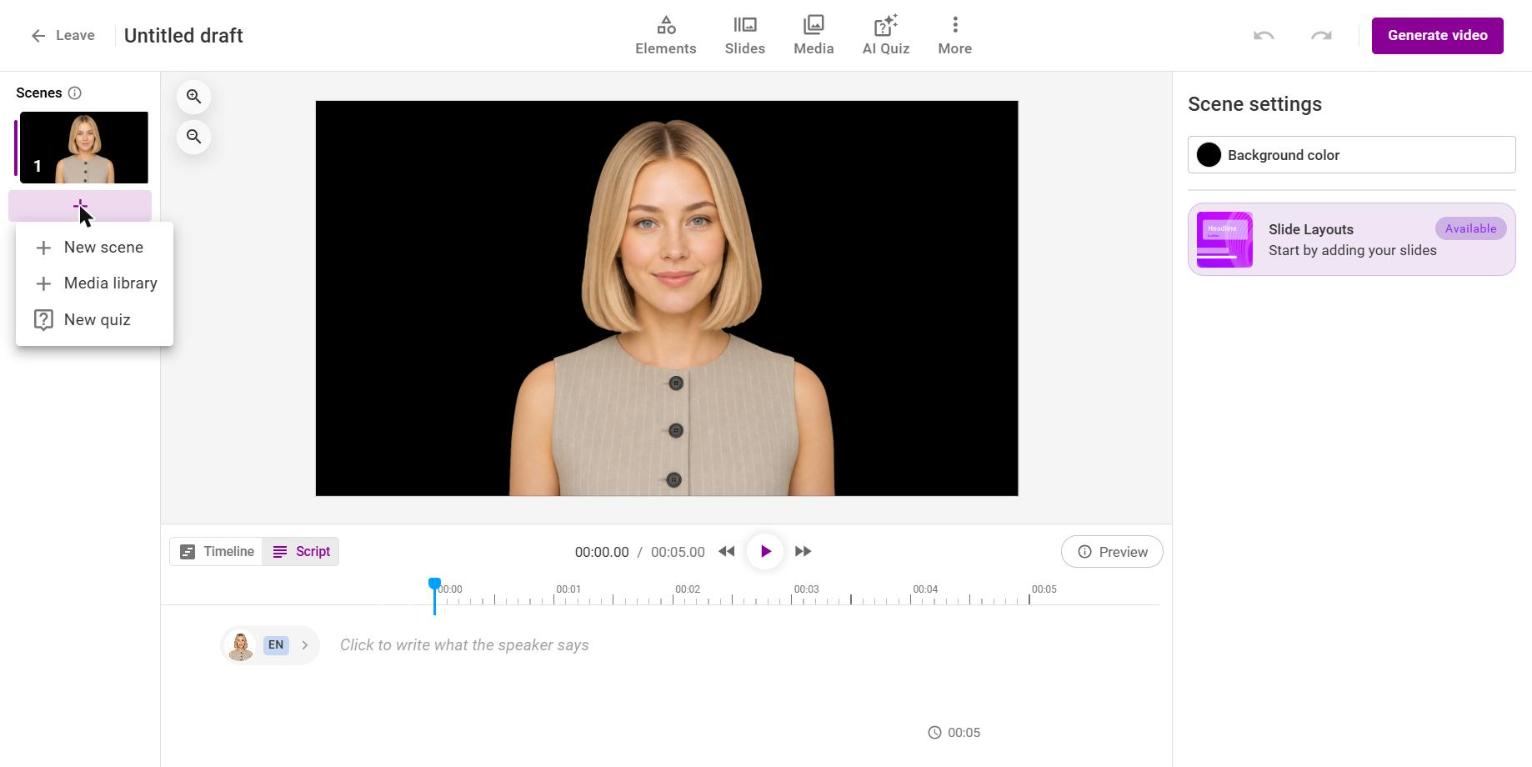
Click + below the scene list and choose:
- New scene: an empty 5-second scene. With an AI voice it starts with an empty speaker text and the speaker of the scene above.
- Media library: a file or another video becomes a scene. Its elements are fitted to your video and its background color is carried over.
- New quiz: a quiz at the end of the scene.
Step 2: Change the order
Drag a scene in the list to its new position. The scene's quizzes move with it.
Step 3: Split a scene
In the timeline, set the playhead at the joint between two videos and click Split scene. One scene becomes two.
Step 4: Set up the scene
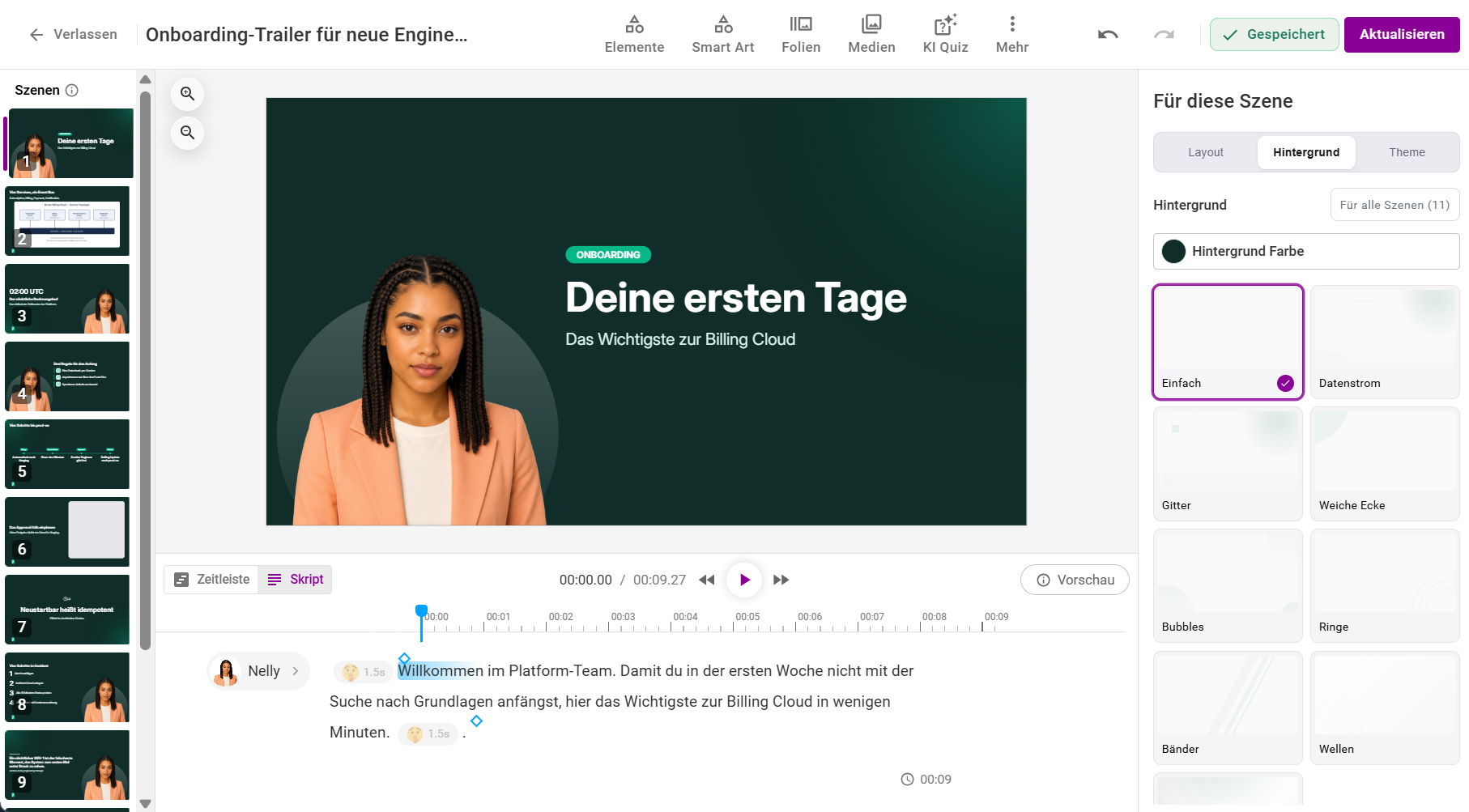
Click an empty spot on the canvas. Under Scene settings on the right, three tabs set up the scene:
- Layout: how the content is arranged, for example Full width, Columns 1:1 or Free canvas. See “Layout and avatar placement”.
- Background: a Background color and a pattern, for example Plain, Data stream, Grid, Bubbles or Waves.
- Theme: the scene's design. Settings adjusts how elements look.
Apply to all scenes uses your choice for the whole video.
Step 5: Delete a scene
Delete the scene from its menu in the list and confirm. Quizzes in that scene are deleted too.
Step 6: Duplicate or copy a scene
- Duplicate: open the three-dots menu of the scene in the list and choose Duplicate. The copy appears right below it.
- Copy and paste: select the scene in the scenes list and press Ctrl/Cmd + C. Then select the scene the copy should follow and press Ctrl/Cmd + V. This works in the same video and in another video of your account, also in another tab. A copied scene can be pasted as often as you like.
The copy keeps its media, speaker text with voice, elements and quizzes. Subtitles are not copied; the target video generates its own.
Frequently asked questions
Can I merge two scenes?
No. You can copy elements and paste them into another scene.
Pasting shows “Pasting not possible”.
The clipboard holds no scene, or the scene comes from another account. Copy the scene again in the scenes list.
Why can't I delete my scene?
A video needs at least one scene. The last scene can't be deleted.
I deleted a scene by mistake.
Undo it while you are still in the editor.
How do I watch the whole video?
In the editor you play the current scene. You see the whole video on the details page after updating.
Do subtitles and chapters apply per scene?
No. Subtitles and chapters apply to the whole video.
What happens to forms and quizzes when I insert another video?
Forms of the inserted video are not carried over. The editor warns you before inserting.
Questions? Send us a message, we are happy to help!