Overview
Under Administration you manage who in your organization works with Omnora. Users with the user management permission see these pages. Omnora sets up the permissions themselves.
Step 1: Open the user list
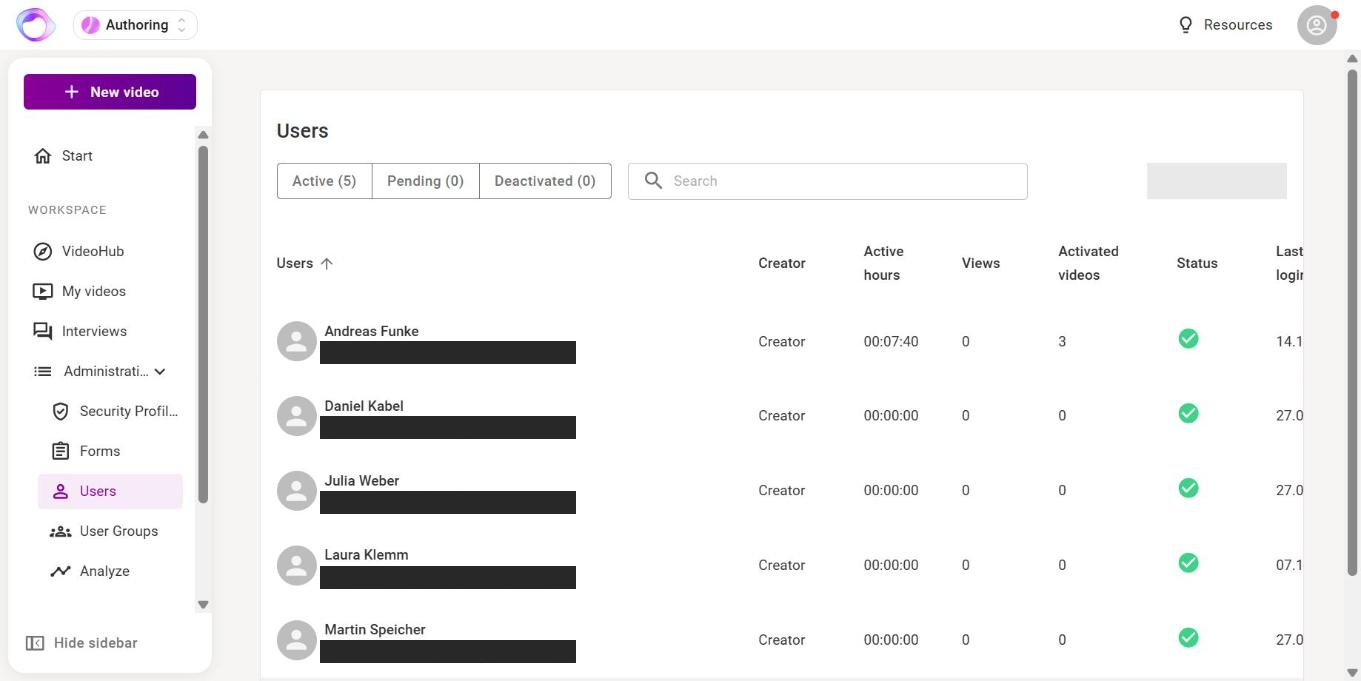
Open Administration › Users in the sidebar. The tabs Active, Pending and Deactivated show every account with role, active hours, views, activated videos, status and last login.
Step 2: Invite users
- Click Invite user at the top right.
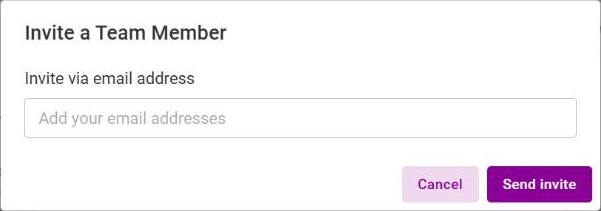
- In Invite a Team Member, enter one or more email addresses, separated by comma, semicolon, space or Enter.
- Click Send invite.
Invitees appear under Pending until they set their password. There you resend or remove the invite.
Step 3: Set the role
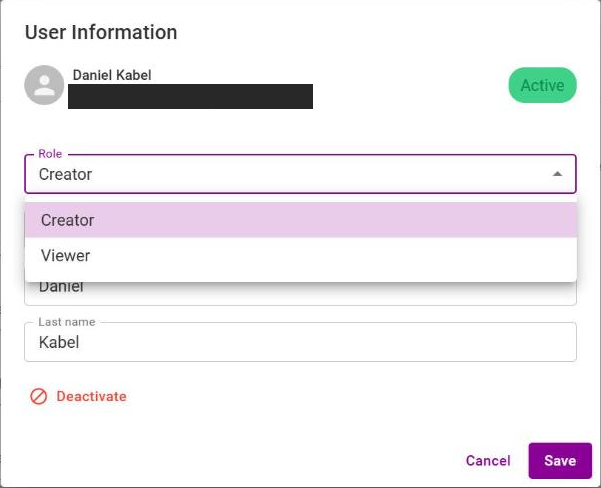
Click a person. In User Information you choose the role:
- Creator: creates and edits videos and lands on the start page after login.
- Viewer: watches the videos shared with them.
Step 4: Create groups
Under Administration › User Groups you create groups, for example per department, and add members. When sharing within VideoHub you then pick whole groups instead of single people. Removing someone from a group removes their access to the videos shared with that group.
Step 5: Deactivate users
- Hand the person's videos over to someone else first, see “Manage my videos”.
- Click Deactivate for the person and choose whether their content stays active or is deactivated too.
The person is signed out at their next action. Restore brings a deactivated account back. Users can't be deleted.
Frequently asked questions
I can't invite anyone any more.
Some contracts limit the number of licenses. When all are used, a notice appears. Remove open invites you no longer need, or talk to your Omnora contact person.
The invited person already has a trial account.
They get an email to confirm the invitation. Afterwards they belong to your team.
I don't see user management.
You need the user management permission, which Omnora sets up. The page is hidden on phones.
Where does someone change their name, language or email notifications?
Each person themselves under the account icon › Settings.
Questions? Send us a message, we are happy to help!