Overview
In the Brand Kit you store your organization's brand elements once: logo, colors, fonts, preferred avatar, preferred voices per language, AI watermark and the player design. New scenes, elements and videos take these defaults automatically. The settings apply to the entire organization.
Content managers of your organization edit the Brand Kit. Everyone else uses the defaults automatically without seeing the page.
Step 1: Open the Brand Kit
Click Brand Kit under Assets in the sidebar. The Brand Kit is no longer part of the account settings.
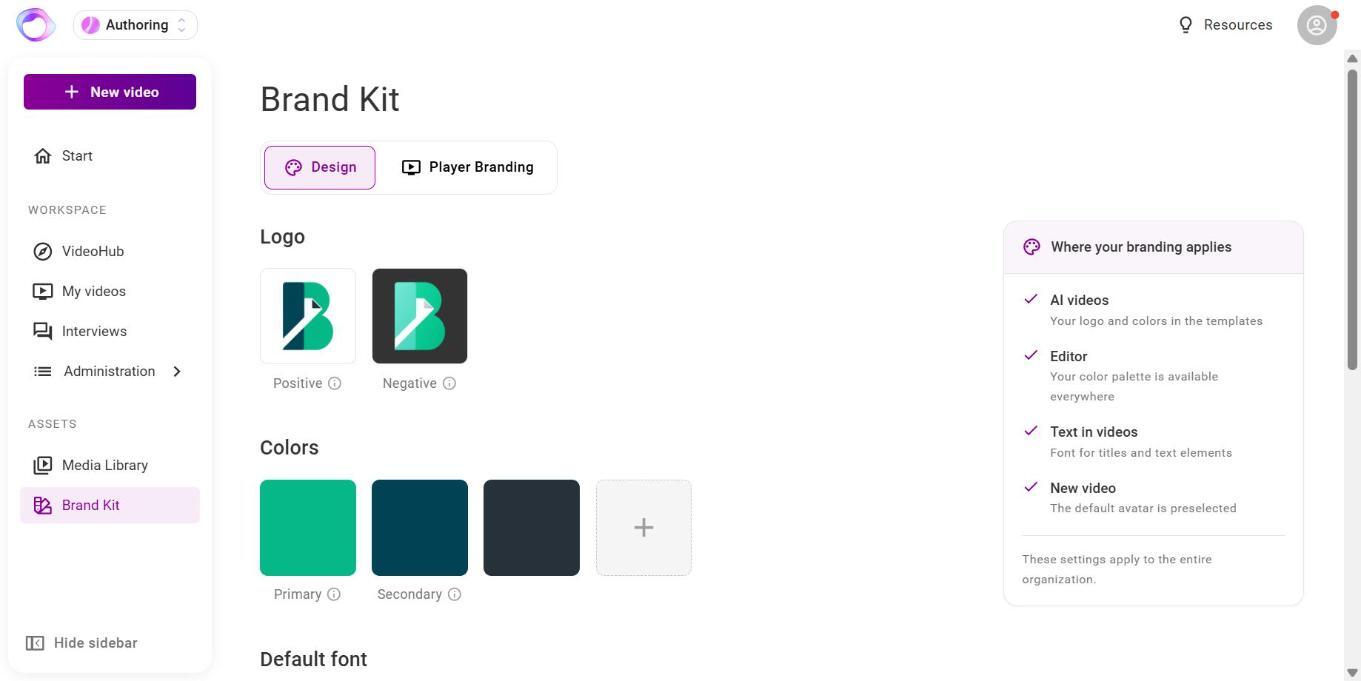
Step 2: Set the design
In the Design tab you maintain:
- Logo: a positive logo for light and a negative logo for dark backgrounds, as JPEG or PNG up to 10 MB.
- Colors: primary and secondary color and further colors, up to 20 in total. They appear in the editor's color picker and as accent colors when creating with the AI Agent and the AI interview.
- Default font: one font each for Headline and Body. New text elements use them automatically. You can't upload your own fonts.
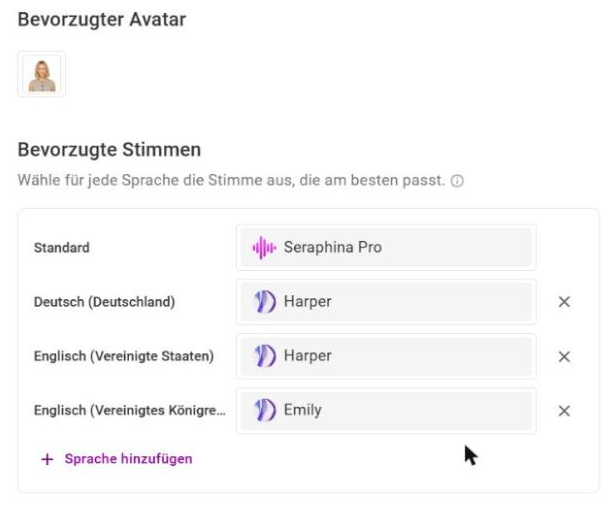
- Preferred avatar: the avatar new scenes start with.
- Preferred voices: one voice under All locales for every language without a voice of its own, and optionally one voice per language. Add language adds another language, the × removes it. Every voice that speaks the language can be chosen.
- AI watermark: a label for videos with an AI voice. See the article “AI Labeling of Videos”.
The box “Where your branding applies” shows where the settings take effect.
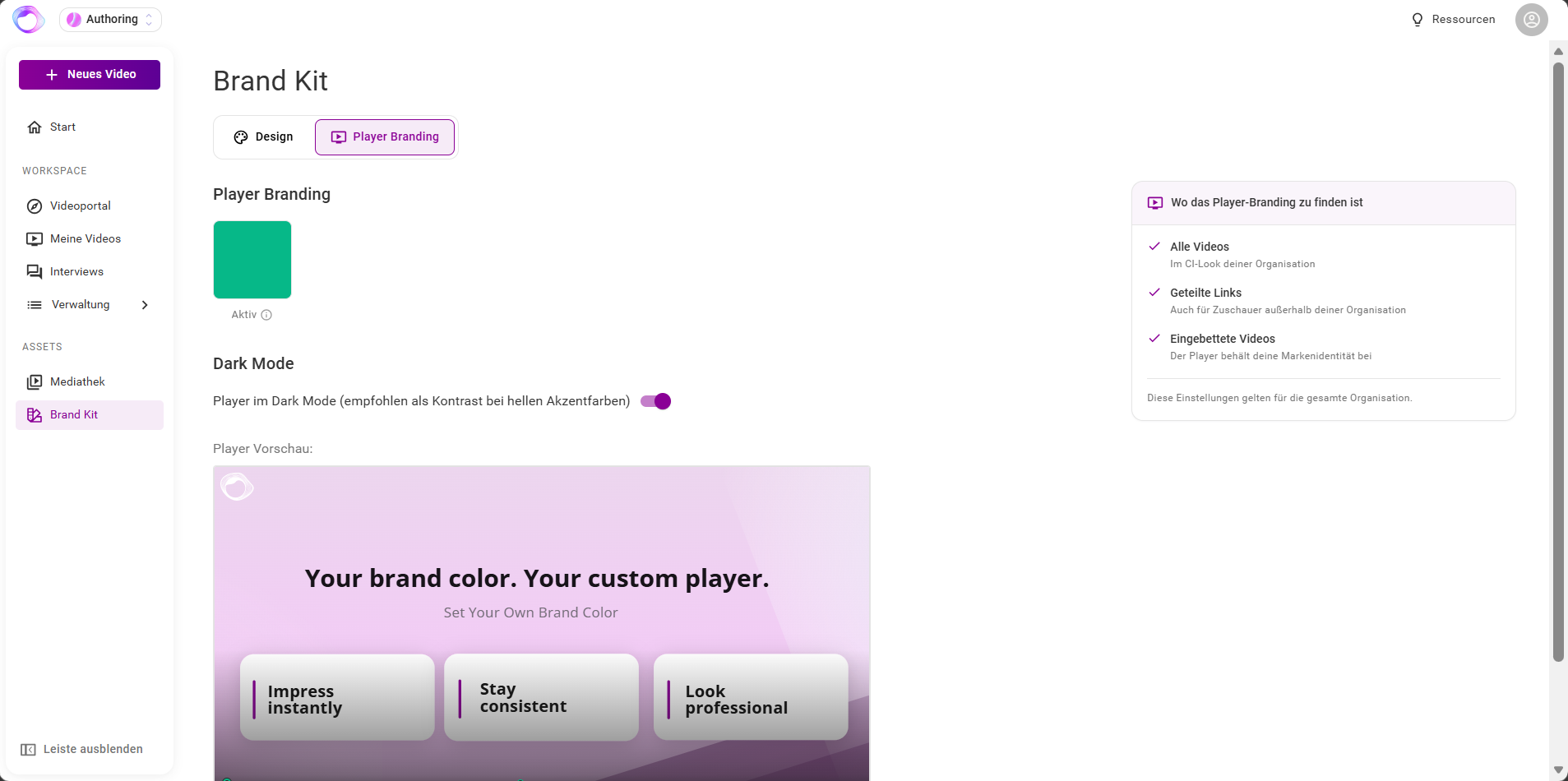
Step 3: Design the player
In the Player Branding tab you set the player's accent color and turn on dark mode if needed (recommended for light accent colors). The preview shows the result. Player branding applies to every video, including shared links and embedded videos. Depending on your permissions you see this tab.
How the settings take effect
- There is no save button. Every change is applied at once. Only the AI watermark dialog is saved with Save.
- New scenes get the preferred avatar and the All locales voice once, when they are created. Existing scenes keep their speaker.
- Videos you take over from Intelligence Management speak with the preferred voice of their language. If there is none, a voice of the same language from another region is used, otherwise the All locales voice.
- Newly created videos use the Brand Kit. Existing videos take changes such as the AI watermark only after you update them in the editor.
- If you remove a logo or a color, videos that already use it keep it.
Frequently asked questions
I can't see the Brand Kit. Why?
Only content managers see the Brand Kit. It is hidden on phones. Ask a person with this role in your organization.
Can I add my own avatar?
No. There are no custom or customer-specific avatars. You choose one of the available avatars as the default.
Why doesn't a new video have my new color?
Check whether the video was created after the change. Existing videos only change once you update them.
Questions? Send us a message, we are happy to help!