Overview
With the recorder you record screen, camera, microphone or slides right in the browser. AI dubbing replaces your own voice with an AI voice: slips and pauses disappear and, if you want, it translates at the same time. Start both on the start page under Screen or Video.
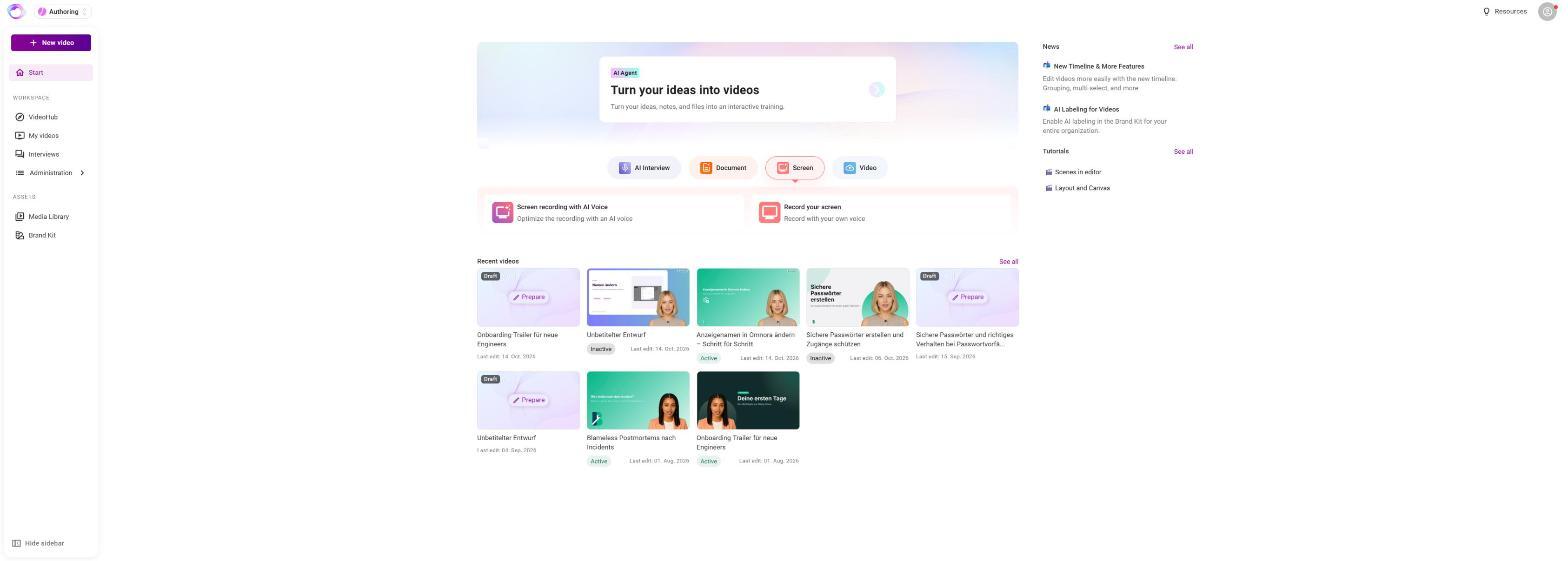
Option 1: Screen recording with AI voice
- Under Screen, choose Screen recording with AI Voice.
- Choose microphone and screen and start recording. Speak normally; slips are no problem.
- Afterwards your speech is transcribed, cleaned up and translated if you want, and spoken again by an AI voice.
- The result is a video draft that you finish in the editor.
Option 2: Dub an existing video
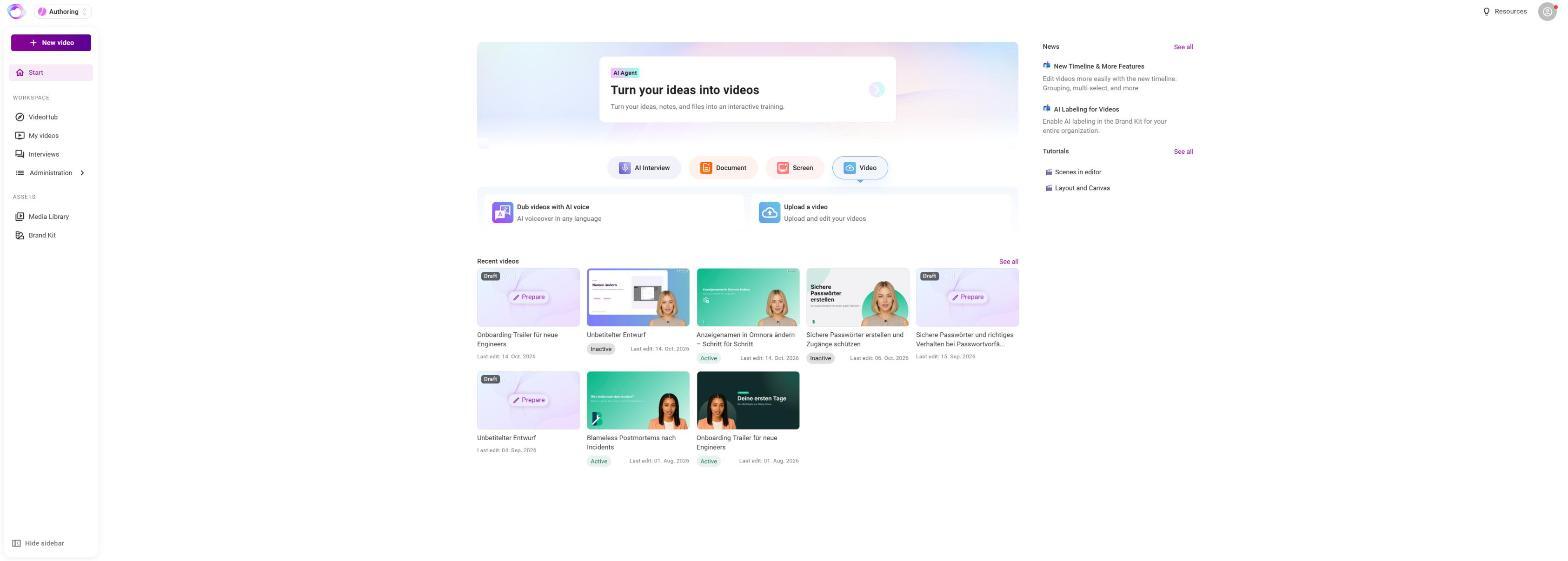
- Under Video, choose Dub videos with AI voice, then Record a screen or Select a file.
- Choose the original language if needed. Otherwise it is detected.
- Choose the Target language and a voice.
- Turn on Intelligent Text Optimization if needed. It removes pauses, filler words, repeats and false starts.
- Click Dub your video. The original sound is muted, the video is cut into scenes and created as a new draft.
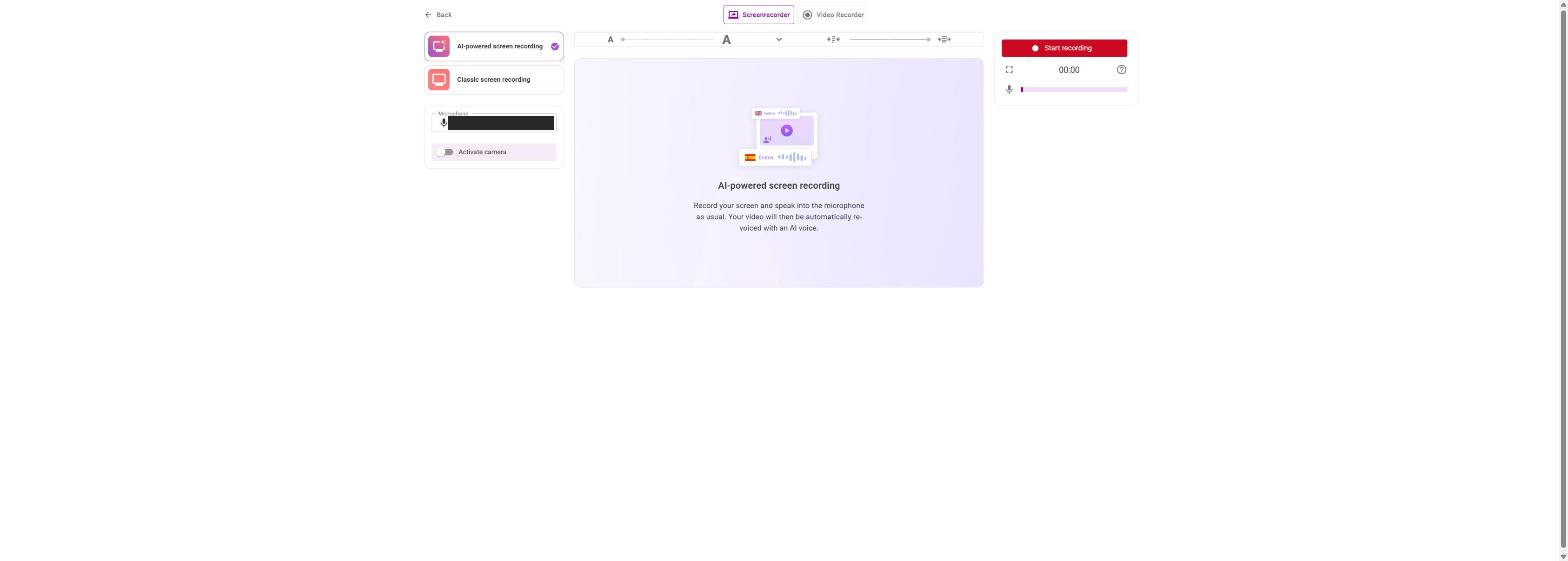
Option 3: Classic recording with your own voice
- Under Screen, choose Record your screen.
- Choose microphone, optionally the camera (Activate camera), and with Choose screen source the window or screen.
- Click Start recording. You can pause, continue or restart.
- Click Save and finish, enter a title and click Create video.
In the Video Recorder tab you record yourself with camera, audio only or together with slides. Your notes scroll along like a teleprompter.
💡 If the AI voice is longer than your screen video, adjust the clip speed in the editor's Media tab (0.5x to 2x).
Frequently asked questions
Can I still change the text after dubbing?
Yes. Open the draft in the editor, adjust the speaker text and click Update video.
Which languages can I translate into?
37 target languages, one per run. 64 source languages are recognised.
Does an AI dubbing get an avatar?
No. Dubbing a video has no avatar and no speed setting for the voice.
The recording failed. Is everything lost?
Backup downloads the recording before upload. Very high screen resolutions can stop a recording.
I don't see the AI cards.
The AI features are not enabled for you or your organization. Contact your Omnora contact person.
The screen recording doesn't start.
Some company settings block screen recording in individual browsers. Try Google Chrome. If your computer's sound should be in the video, also share the system audio when you choose the screen.
Questions? Send us a message, we are happy to help!