Overview
With “Avatar for your slides” you upload a slide set and get a video draft: one scene per slide, presented by your brand kit's preferred avatar. The AI writes the speaker text, or you use your slide notes.
Step 1: Start
- Click Start in the sidebar.
- Under “What would you like to start with?”, choose the Document card.
- Click Avatar for your slides.
Step 2: Upload slides
Upload one or more files (PowerPoint, PDF, Word or OpenOffice) or pick them from the Media library. Download Google Slides as PowerPoint or PDF first.
If your PowerPoint has animations, choose Import animations: each animation step becomes its own slide. If the animations should play as in the original, record the presentation as a screen recording, see “Record and dub your screen”.
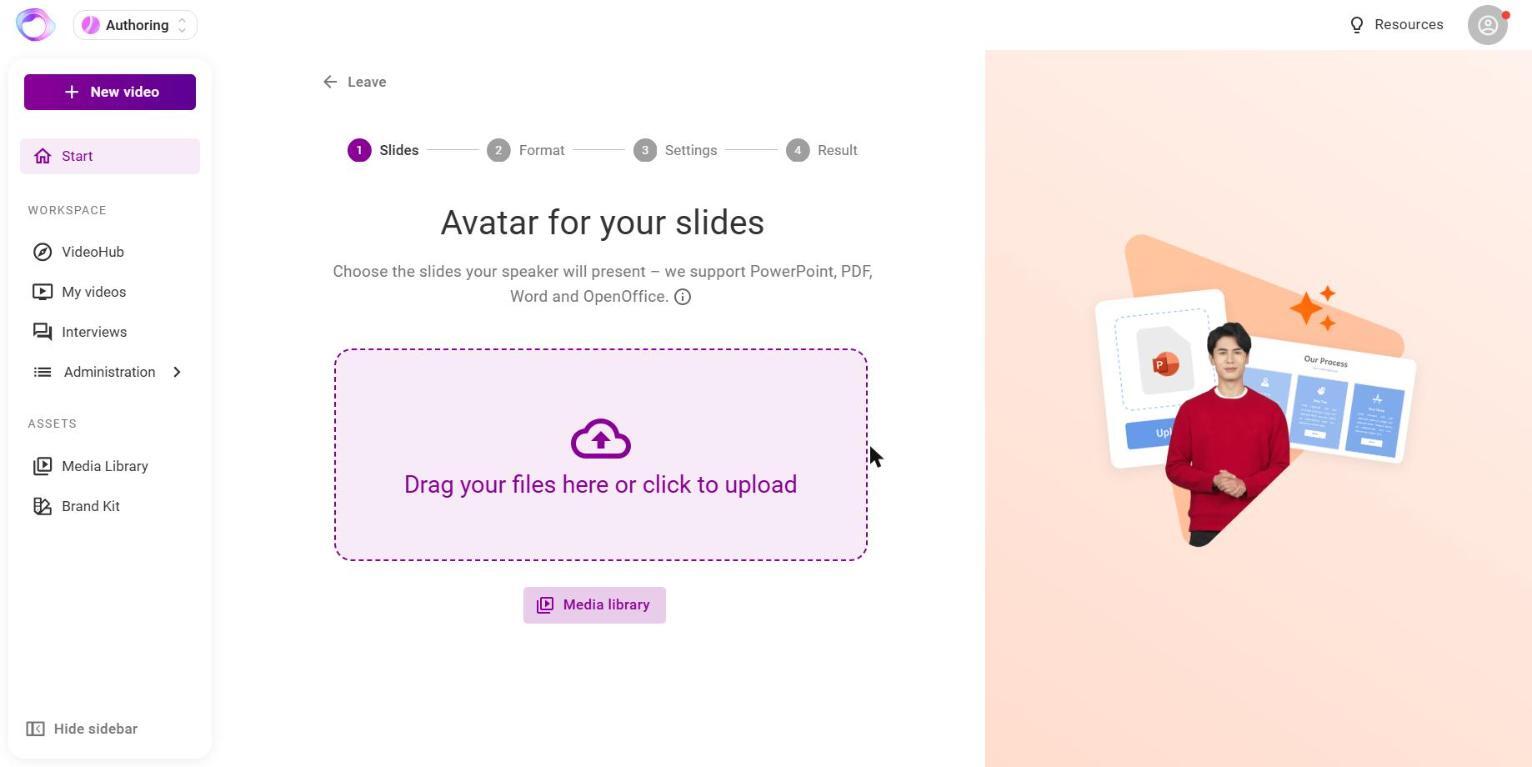
Step 3: Choose the format
Under “What would you like to do?” you decide where the speaker text comes from:
- Generate speaker text: the AI writes the speaker text from your slides. Take notes into account uses your slide notes too, Use formal form of address makes the avatar formal.
- Translate slides: choose Translate slides & speaker text or Translate only text and the Desired language.
- Continue with my notes: the avatar speaks exactly your slide notes.
Step 4: Wait for the result
While “Generation is running”, you see the progress. Stay on the page until the editor opens, otherwise the generation is cancelled.
Step 5: Adjust in the editor and generate the video
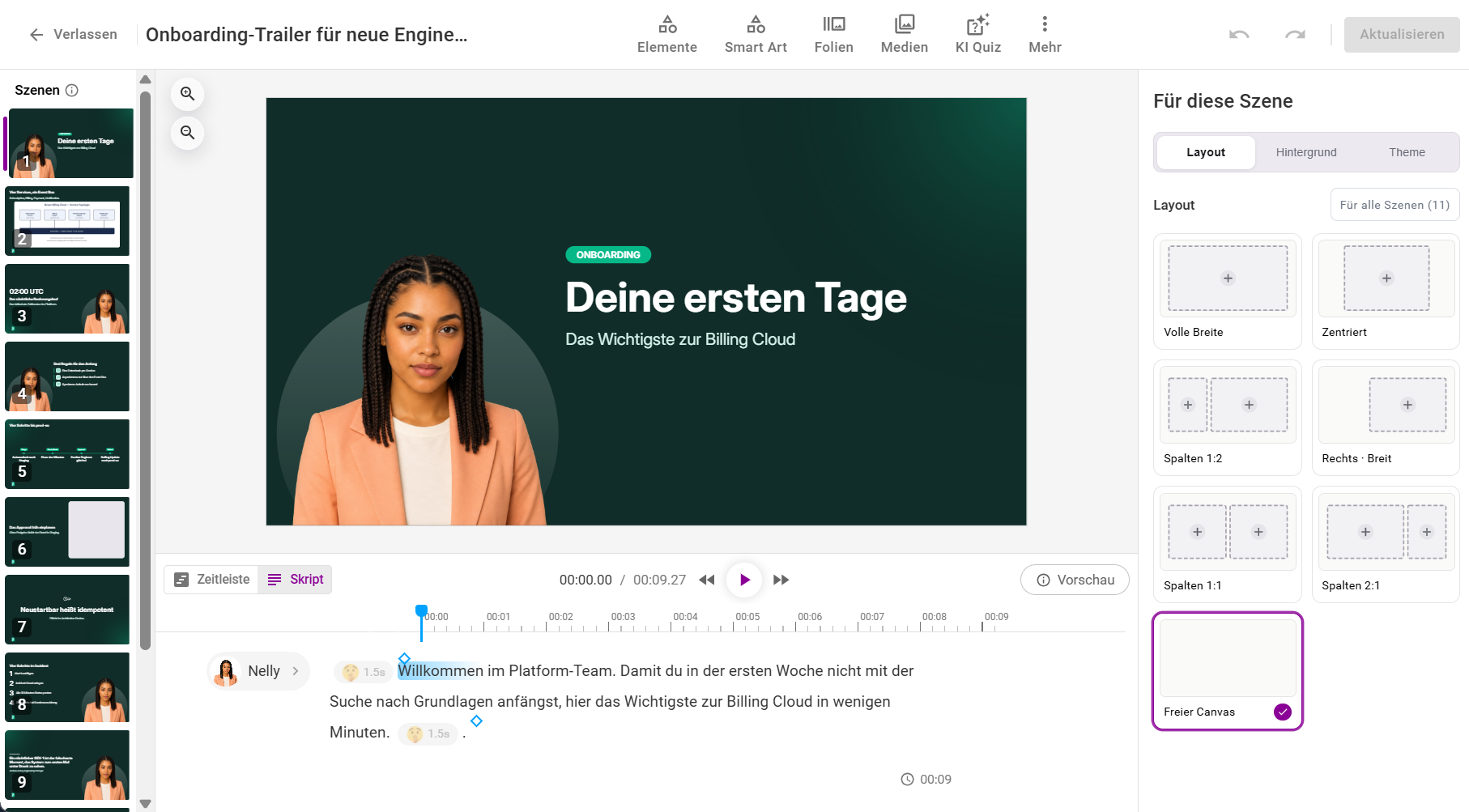
In the editor, every slide is a scene with speaker text, avatar and voice. Adjust avatar, voice, layout and text, then click Generate video at the top right. If you translated, first choose a voice of the target language and apply it to all scenes. More in “The editor at a glance”.
💡 If you want the AI to build a new training with its own structure from your documents, rather than voicing your slides as they are, use “Turn any document into AI video”.
Frequently asked questions
How long can the speaker text per slide be?
Up to 2,500 characters. Longer texts are flagged and must be shortened before generating.
Is my original file changed?
No. A translation gives you a new file in the Media Library; the original stays.
My fonts look different in the video.
Unknown fonts are replaced during upload. Upload your presentation as a PDF; the typeface is then kept.
Numbers or elements appear on my slides that I don't see in PowerPoint.
Usually the presentation has two slide layouts with the same name. In PowerPoint, give the layouts unique names under View › Slide Master and upload the file again.
I deleted the avatar and can't edit the speaker text any more.
Deleting the avatar removes the AI speaker including the text, so undo the step with the arrow at the top left. To hide the avatar, use the eye on the speaker in the script.
Questions? Send us a message, we are happy to help!