Overview
With “Avatar for your slides” you upload a slide set and get a video draft: one scene per slide, presented by your brand kit's preferred avatar. The AI writes or translates the speaker text, or you use your slide notes.
Step 1: Start
- Click Start in the sidebar.
- Under “What would you like to start with?”, choose the Document card.
- Click Avatar for your slides.
Step 2: Upload slides
Upload one or more files (PowerPoint, PDF, Word or OpenOffice) or pick them from the Media library. If your PowerPoint has animations, choose Import animations: each animation step becomes its own slide.
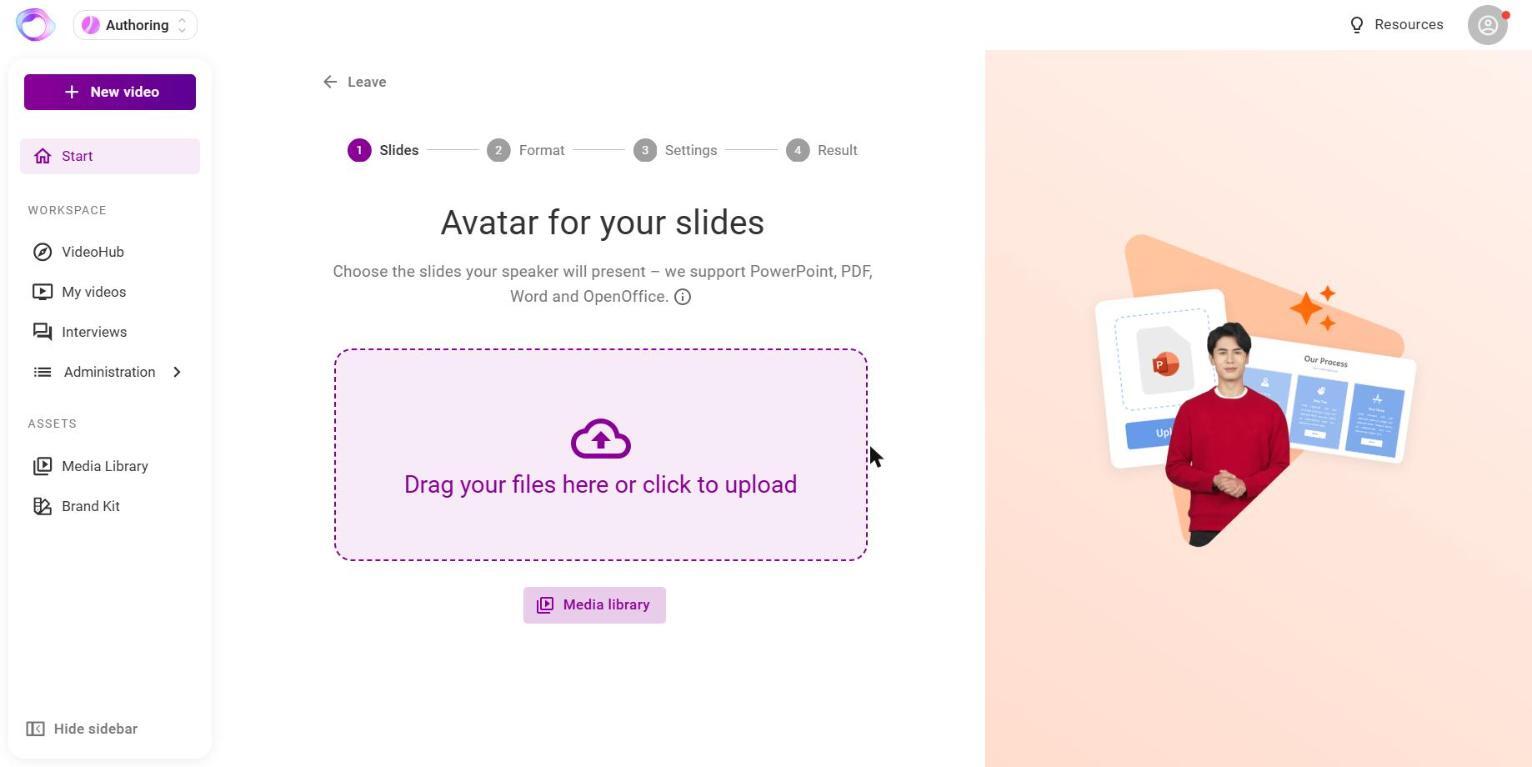
Step 3: Choose the format
Under “What would you like to do?” you decide where the speaker text comes from:
- Generate speaker text: the AI writes the speaker text from your slides. Take notes into account uses your slide notes too, Use formal form of address makes the avatar formal. You can add hints for the AI next to each slide.
- Translate slides: choose Translate slides & speaker text or Translate only text and the Desired language.
- Continue with my notes: the avatar speaks exactly your slide notes.
Step 4: Wait for the result
While “Generation is running”, you see how many slides are ready. You are then forwarded to the editor automatically. Leaving the page earlier cancels the generation.
Step 5: Adjust in the editor and generate the video
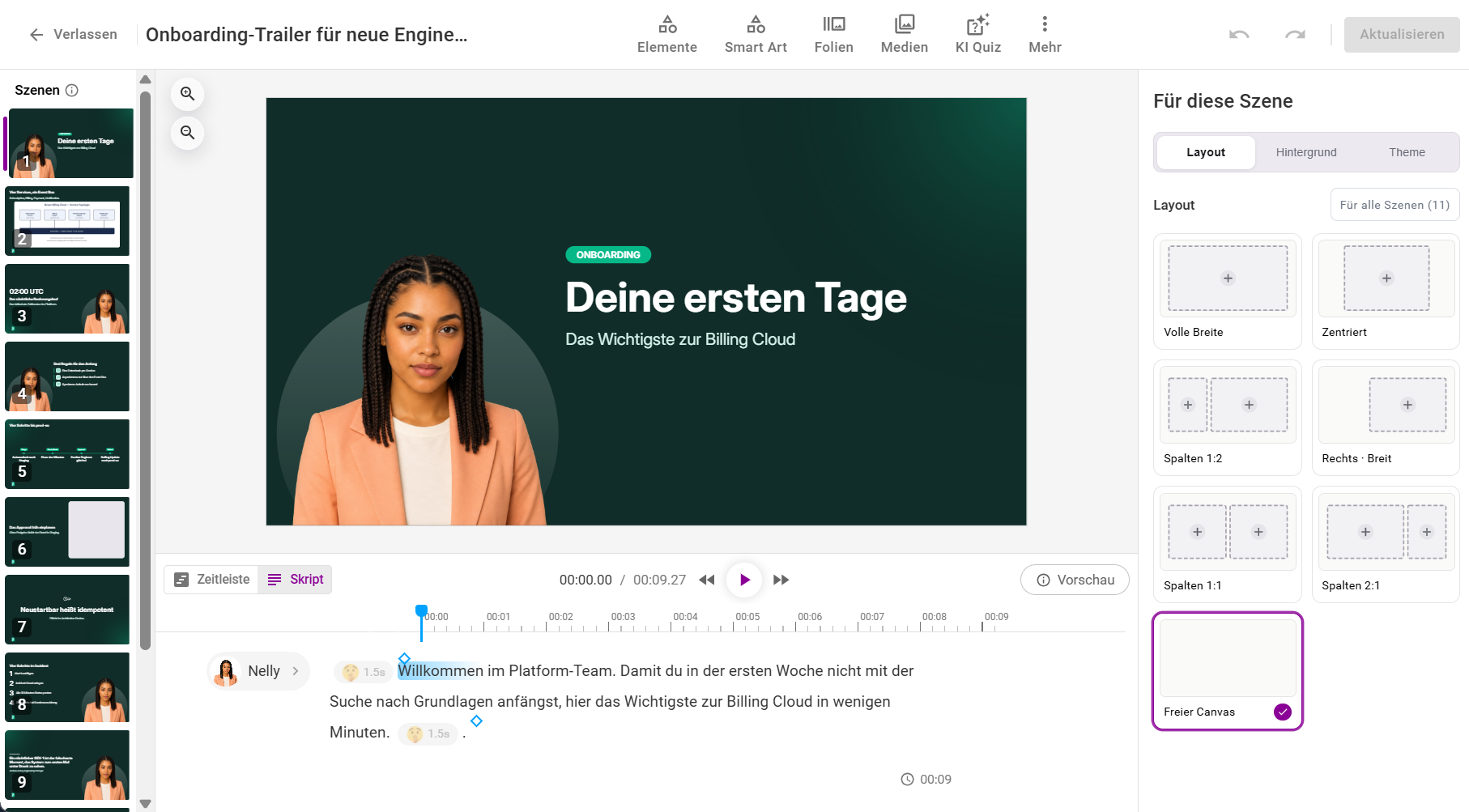
In the editor, every slide is a scene with speaker text, avatar and voice from the brand kit. Adjust avatar, voice, layout and text, then click Generate video at the top right.
💡 If you want the AI to build a new training with its own structure from your documents, rather than voicing your slides as they are, use “Turn any document into AI video”.
Frequently asked questions
How long can the speaker text per slide be?
Up to 2,500 characters per slide. Longer texts are flagged and must be shortened before you generate the video.
Is there a limit on the number of slides?
With a Premium avatar, the first 50 slides are used.
Is my original file changed?
No. Text you enter here doesn't overwrite the notes in your file. A translation gives you a new file; the original stays. Then choose a voice of the target language in the editor and apply it to all scenes.
How large can a file for translation be?
One document of up to 40 MB is translated.
Where did the AI Video Generator go?
It was replaced by this flow in July 2026. You now land directly in the editor and see from the start what you will get.
My fonts look different in the video.
Fonts that Omnora doesn't know are replaced during upload. Save your presentation as a PDF and upload the PDF; the typeface is then kept.
Can I use Google Slides?
Yes. Download the presentation from Google Slides as PowerPoint or PDF and upload that file.
Where do I find the translated file?
In the Media Library. In the source filter, switch on AI-generated as well as Uploads.
Questions? Send us a message, we are happy to help!