---
title: The Media Library
description: "Media Library in Authoring Automation: search and filter files, upload, upload from a phone with an upload ticket, rename, download and delete."
---
[Skip to content](https://help.omnora.com/en/help-center/the-media-library#main-content)
- [English](https://help.omnora.com/en/help-center/the-media-library)
- [Deutsch](https://help.omnora.com/de/help-center/die-mediathek)
English
Show submenu for translations
Open main navigation
Close main navigation
- - [English](https://help.omnora.com/en/help-center/the-media-library)
- [Deutsch](https://help.omnora.com/de/help-center/die-mediathek)
English
Show submenu for translations
What do you want to know?
- There are no suggestions because the search field is empty.
1. [Omnora Help Center](https://help.omnora.com/en/help-center?hsLang=en)
2. [Authoring Automation](https://help.omnora.com/en/help-center/authoring-automation?hsLang=en)
3. [Edit](https://help.omnora.com/en/help-center/authoring-automation?hsLang=en#edit)
October 28, 2026
# The Media Library
## Find, upload and manage your files for videos: recordings, uploads, AI-generated files and documents.
### Overview
The Media Library holds your files for videos: uploads, recordings, AI-generated audio and avatar videos, edited files and documents. The same library opens when you pick a file in the editor or in a creation flow.
### Step 1: Open the Media Library
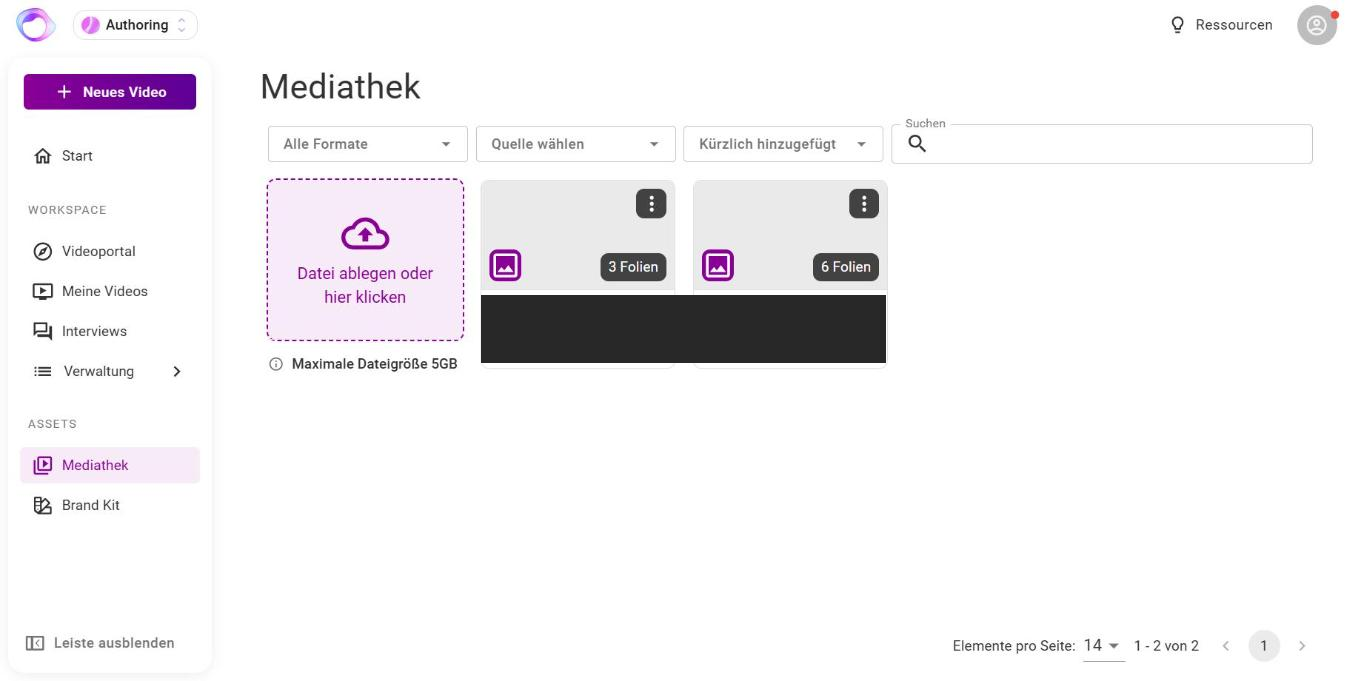
In the sidebar, under **Assets**, click **Media Library**.
### Step 2: Find files
- Use **Search** to find a file by its name.
- Filter by type: all formats, video, audio or document (which includes images).
- Filter by source: **Recordings**, **Uploads**, **AI-generated** and **Editings**. By default only Recordings and Uploads are on.
- Sort by **Recently added** or **Alphabetical**.
You can share a filtered view by link: the filters are kept in the address.
### Step 3: Upload files
Upload up to 3 files at once, each up to 5 GB. Videos are processed up to 1920 x 1080 pixels.
### Step 4: Upload from a phone or another device
1. In the Media Library, click **Upload ticket**. **Upload files from an external device** opens with a QR code and a code.
2. Scan the QR code with your phone, or open the upload page and enter the code. You don't need to sign in on the phone.
3. Upload the files, then reload the Media Library on your computer.
The code has 12 characters and is valid for 30 minutes. A new ticket replaces the old one.
### Step 5: Manage files
For each file you can open a preview, rename it, copy its ID with **Copy ID**, download it (depending on your permissions) or delete it.
- A file that no video uses is deleted.
- A file that videos use is only removed from the Media Library and stays in the videos.
- Removed files cannot be restored.
---
### Frequently asked questions
**Where do I find AI-generated files or translated slides?**
By default the Media Library shows only Recordings and Uploads. Also switch on AI-generated in the source filter. You find translated slides when Uploads and AI-generated are on.
**An upload in a creation flow doesn't get past 100 %.**
Upload the file here in the Media Library, then pick it in the creation flow from the Media Library. If that doesn't work either, write to us in the chat.
**I don't see a download option.**
Downloading files is not enabled for every account. Contact your contact person at Omnora.
**Is there a storage limit?**
No. There is no storage quota for the Media Library.
**Can I use the Media Library on my phone?**
On a phone the Media Library is hidden in the sidebar. To upload from a phone, use the upload ticket.
---
**Questions?** Send us a message, we are happy to help!
- [Intelligence Management](https://help.omnora.com/en/help-center/intelligence-management?hsLang=en#main-content)
- [Capture knowledge](https://help.omnora.com/en/help-center/intelligence-management?hsLang=en#capture-knowledge)
- [Transfer knowledge](https://help.omnora.com/en/help-center/intelligence-management?hsLang=en#transfer-knowledge)
- [Administration](https://help.omnora.com/en/help-center/intelligence-management?hsLang=en#administration)
- [Authoring Automation](https://help.omnora.com/en/help-center/authoring-automation?hsLang=en#main-content)
- [Create](https://help.omnora.com/en/help-center/authoring-automation?hsLang=en#create)
- [Edit](https://help.omnora.com/en/help-center/authoring-automation?hsLang=en#edit)
- [Roll out](https://help.omnora.com/en/help-center/authoring-automation?hsLang=en#roll-out)
- [Administration](https://help.omnora.com/en/help-center/authoring-automation?hsLang=en#administration)
- [Legal Notice](https://omnora.com/en/imprint)
- [Privacy Policy](https://omnora.com/en/privacy)
- [Terms of Use](https://omnora.com/en/terms-of-use)
- [Terms and Conditions](https://omnora.com/en/terms)
[](https://omnora.com/de/?hsLang=en)
Omnora GmbH
Gutleutstraße 163-167
60327 Frankfurt am Main
Germany
[mailto:support@omnora.com](mailto:support@omnora.com)
© 2026 Omnora GmbH