---
title: Review and correct a knowledge report
description: "Review a knowledge report in Intelligence Management: resolve Unclear, Assumption, Gap and Proposal highlights, edit the text and download it as a PDF."
---
[Skip to content](https://help.omnora.com/en/help-center/review-and-correct-a-knowledge-report#main-content)
- [English](https://help.omnora.com/en/help-center/review-and-correct-a-knowledge-report)
- [Deutsch](https://help.omnora.com/de/help-center/den-wissensbericht-pruefen-und-korrigieren)
English
Show submenu for translations
Open main navigation
Close main navigation
- - [English](https://help.omnora.com/en/help-center/review-and-correct-a-knowledge-report)
- [Deutsch](https://help.omnora.com/de/help-center/den-wissensbericht-pruefen-und-korrigieren)
English
Show submenu for translations
What do you want to know?
- There are no suggestions because the search field is empty.
1. [Omnora Help Center](https://help.omnora.com/en/help-center?hsLang=en)
2. [Intelligence Management](https://help.omnora.com/en/help-center/intelligence-management?hsLang=en)
3. [Capture knowledge](https://help.omnora.com/en/help-center/intelligence-management?hsLang=en#capture-knowledge)
October 28, 2026
# Review and correct a knowledge report
## Check the highlighted passages, correct the text and download the report as a PDF.
### Overview
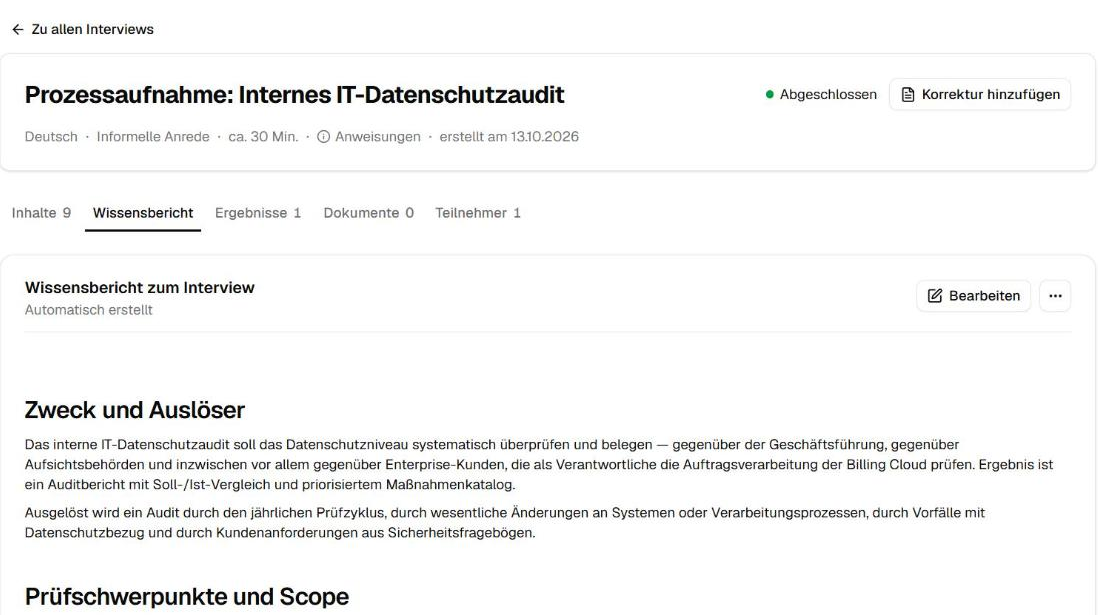
For every completed interview, Omnora writes a knowledge report: the complete written account of what the knowledge giver shared. Results, search and chat use this report. The knowledge giver can review their own report, as can the person who created the interview and users with the Manager role.
### Step 1: Open the report
You reach the report through:
- the email **Your knowledge report: …** with the button **Review highlights** or **View knowledge report**,
- the task on Home under **Your open items**,
- the interview's **Knowledge report** tab.
### Step 2: Review the highlights
The AI highlights only passages where you can decide better than it can:
- **Unclear:** was this what was said?
- **Assumption:** was this what was meant?
- **Gap:** is this missing on purpose?
- **Proposal:** an addition the AI suggests.
1. Step through the highlights with previous and next.
2. For each, choose **Keep**, one of the AI's alternative readings, **Custom text** or, for a proposal, **Discard proposal**.
3. If the passage occurs several times, decide whether your choice applies **Only here** or **Everywhere**.
4. Save the report. Omnora starts using the new version shortly.
### Step 3: Edit the text
Once no highlight is open, correct the full text with **Edit** and save. An edited report shows the date of its last change instead of “Generated automatically”.
### Step 4: Download as PDF
Once all highlights are resolved, download the report from the menu with **Download as PDF**.
---
### Frequently asked questions
**Why don't I see the edit button or the PDF download?**
Both appear only once no highlight is open.
**Who can read my knowledge report?**
Everyone who may see the interview's details, including the members of its initiative.
**My report has no highlights. Do I need to do anything?**
No. Reviewing is optional then. You can still read and edit the report.
**I don't have an account. How do I get to my report?**
For interviews in an initiative, ask for an account with **Request access** in the email. Otherwise contact the person who invited you.
---
**Questions?** Send us a message, we are happy to help!
- [Intelligence Management](https://help.omnora.com/en/help-center/intelligence-management?hsLang=en#main-content)
- [Capture knowledge](https://help.omnora.com/en/help-center/intelligence-management?hsLang=en#capture-knowledge)
- [Transfer knowledge](https://help.omnora.com/en/help-center/intelligence-management?hsLang=en#transfer-knowledge)
- [Administration](https://help.omnora.com/en/help-center/intelligence-management?hsLang=en#administration)
- [Authoring Automation](https://help.omnora.com/en/help-center/authoring-automation?hsLang=en#main-content)
- [Create](https://help.omnora.com/en/help-center/authoring-automation?hsLang=en#create)
- [Edit](https://help.omnora.com/en/help-center/authoring-automation?hsLang=en#edit)
- [Roll out](https://help.omnora.com/en/help-center/authoring-automation?hsLang=en#roll-out)
- [Administration](https://help.omnora.com/en/help-center/authoring-automation?hsLang=en#administration)
- [Legal Notice](https://omnora.com/en/imprint)
- [Privacy Policy](https://omnora.com/en/privacy)
- [Terms of Use](https://omnora.com/en/terms-of-use)
- [Terms and Conditions](https://omnora.com/en/terms)
[](https://omnora.com/de/?hsLang=en)
Omnora GmbH
Gutleutstraße 163-167
60327 Frankfurt am Main
Germany
[mailto:support@omnora.com](mailto:support@omnora.com)
© 2026 Omnora GmbH