---
title: Layout and avatar placement
description: "Layout and canvas in Authoring Automation: slide layouts, placing elements, zoom, arrow keys, choosing, showing and hiding the avatar and its background."
---
[Skip to content](https://help.omnora.com/en/help-center/layouts#main-content)
- [English](https://help.omnora.com/en/help-center/layouts)
- [Deutsch](https://help.omnora.com/de/help-center/layouts)
English
Show submenu for translations
Open main navigation
Close main navigation
- - [English](https://help.omnora.com/en/help-center/layouts)
- [Deutsch](https://help.omnora.com/de/help-center/layouts)
English
Show submenu for translations
What do you want to know?
- There are no suggestions because the search field is empty.
1. [Omnora Help Center](https://help.omnora.com/en/help-center?hsLang=en)
2. [Authoring Automation](https://help.omnora.com/en/help-center/authoring-automation?hsLang=en)
3. [Edit](https://help.omnora.com/en/help-center/authoring-automation?hsLang=en#edit)
November 9, 2026
# Layout and avatar placement
## Arrange slides, videos and the avatar with layouts, place elements freely and set up the avatar.
### Overview
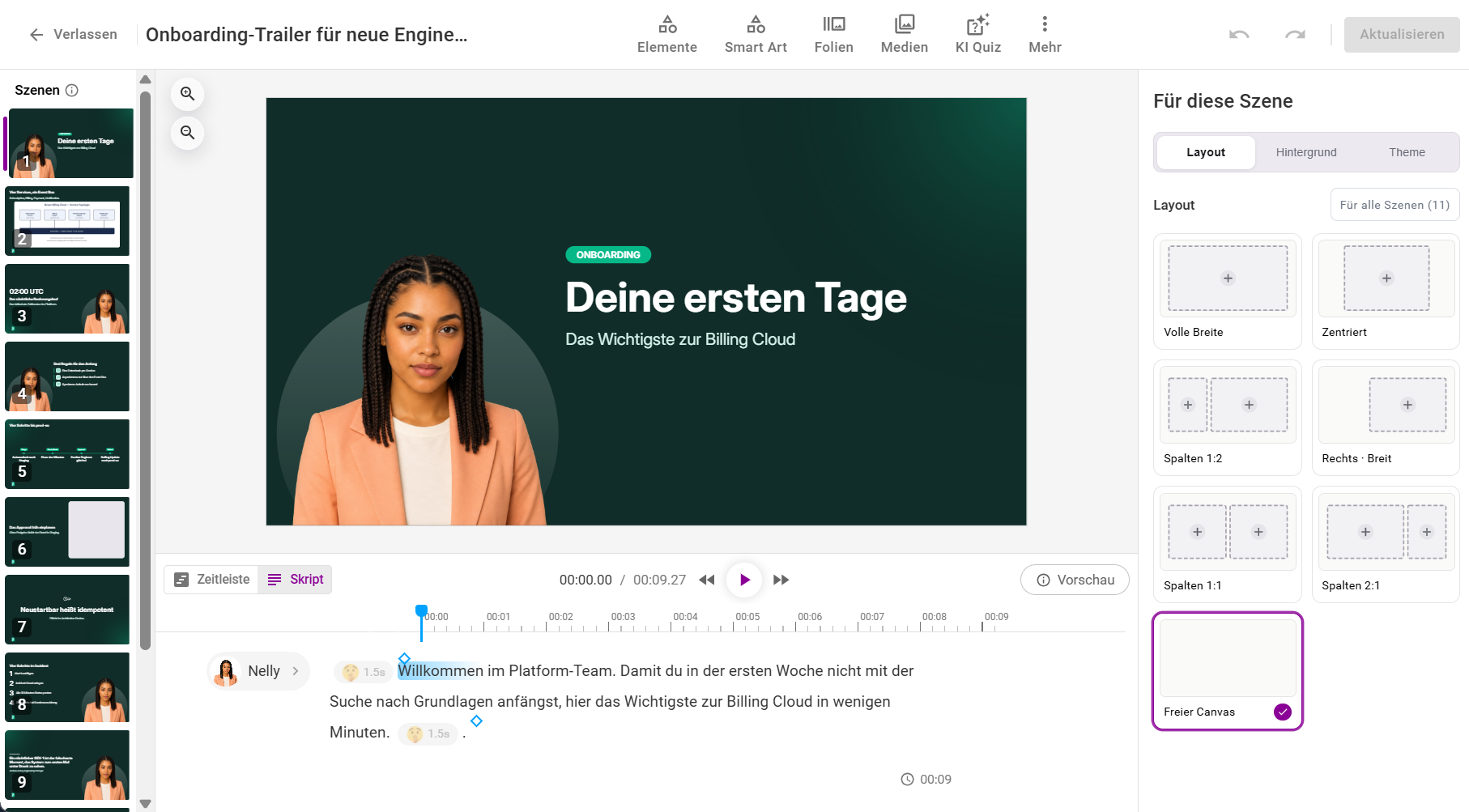
The canvas is your video's 16:9 workspace. Layouts arrange content and avatar in one click, or you place every element freely. You choose and place the avatar like any other element.
### Step 1: Choose a layout
1. Click an empty spot on the canvas so that **Scene settings** appears on the right, and open the **Layout** tab.
2. Choose an arrangement: **Full width**, **Centered**, **Columns 1:2**, **Right · Wide**, **Columns 1:1**, **Columns 2:1** or **Free canvas**. The chosen layout shows a check mark.
3. Use the plus in a box to add content.
4. **Apply to all scenes** sets the layout on every scene.
With **Free canvas** you place every element yourself. Set the scene's background and theme in the tabs next to it, see “[Scenes](https://help.omnora.com/en/help-center/scenes?hsLang=en)”.
### Step 2: Place elements freely
- Move, scale and rotate elements directly on the canvas. Hold Shift to rotate in 15-degree steps.
- Guide lines show when elements are aligned. Elements snap to the canvas edges.
- Arrow keys move a selected element by 1 pixel, with Shift by 10 pixels.
- The element menu changes the layer (forward or back), aligns, locks or groups.
- If an element extends beyond the canvas, you can select and move it in the grey area next to it. A click outside the canvas clears the selection.
### Step 3: Zoom
The magnifier buttons at the top left of the canvas zoom from 50 to 250 %, handy for small elements. The zoom applies to all scenes while you are in the editor and is back at 100 % the next time you open it.
### Step 4: Set up the avatar
1. In the **Script** view, click the speaker's avatar. The selection opens with **Premium Avatars** and **Standard Avatars**. Filters narrow the list, for example by gender or field.
2. Click the avatar on the canvas. In the settings on the right, choose its appearance: **Freestanding**, **Bubble** or **Backdrop**.
3. Under **Background**, choose the avatar's background, depending on your setup.
4. **Apply to all scenes** copies avatar, appearance and background to every scene. Position and size stay as they are in each scene.
5. The eye on the speaker in the script hides the avatar; **Hide globally in all scenes** hides it everywhere. The scene is then narrated by voice only.
6. Move and scale the avatar on the canvas like any other element. Under **Animations** you set how it appears and disappears.
7. Click **Update video** so that the avatar video is created.


---
### Frequently asked questions
**How do I cut out the avatar?**
That's no longer needed. Avatars come without a background. Choose the background directly in the avatar settings.
**Why doesn't the avatar move in the editor?**
The editor shows a still image. Movement and lip sync appear only in the final video.
**Can I put two avatars in one scene?**
No. There is one avatar per scene, and it can't be copied.
**Why does my avatar disappear after choosing a layout?**
If a layout has no room for the avatar, the scene becomes voice only. Choose a layout with an avatar.
---
**Questions?** Send us a message, we are happy to help!
- [Intelligence Management](https://help.omnora.com/en/help-center/intelligence-management?hsLang=en#main-content)
- [Capture knowledge](https://help.omnora.com/en/help-center/intelligence-management?hsLang=en#capture-knowledge)
- [Transfer knowledge](https://help.omnora.com/en/help-center/intelligence-management?hsLang=en#transfer-knowledge)
- [Administration](https://help.omnora.com/en/help-center/intelligence-management?hsLang=en#administration)
- [Authoring Automation](https://help.omnora.com/en/help-center/authoring-automation?hsLang=en#main-content)
- [Create](https://help.omnora.com/en/help-center/authoring-automation?hsLang=en#create)
- [Edit](https://help.omnora.com/en/help-center/authoring-automation?hsLang=en#edit)
- [Roll out](https://help.omnora.com/en/help-center/authoring-automation?hsLang=en#roll-out)
- [Administration](https://help.omnora.com/en/help-center/authoring-automation?hsLang=en#administration)
- [Legal Notice](https://omnora.com/en/imprint)
- [Privacy Policy](https://omnora.com/en/privacy)
- [Terms of Use](https://omnora.com/en/terms-of-use)
- [Terms and Conditions](https://omnora.com/en/terms)
[](https://omnora.com/de/?hsLang=en)
Omnora GmbH
Gutleutstraße 163-167
60327 Frankfurt am Main
Germany
[mailto:support@omnora.com](mailto:support@omnora.com)
© 2026 Omnora GmbH