---
title: Invite, remind and manage participants
description: "Manage interview participants in Intelligence Management: status, invitations, personal and automatic reminders, completing and removing participants."
---
[Skip to content](https://help.omnora.com/en/help-center/invite-remind-and-manage-participants#main-content)
- [English](https://help.omnora.com/en/help-center/invite-remind-and-manage-participants)
- [Deutsch](https://help.omnora.com/de/help-center/teilnehmer-einladen-erinnern-und-verwalten)
English
Show submenu for translations
Open main navigation
Close main navigation
- - [English](https://help.omnora.com/en/help-center/invite-remind-and-manage-participants)
- [Deutsch](https://help.omnora.com/de/help-center/teilnehmer-einladen-erinnern-und-verwalten)
English
Show submenu for translations
What do you want to know?
- There are no suggestions because the search field is empty.
1. [Omnora Help Center](https://help.omnora.com/en/help-center?hsLang=en)
2. [Intelligence Management](https://help.omnora.com/en/help-center/intelligence-management?hsLang=en)
3. [Capture knowledge](https://help.omnora.com/en/help-center/intelligence-management?hsLang=en#capture-knowledge)
October 28, 2026
# Invite, remind and manage participants
## Keep track of who has taken their interview and remind people who haven't finished.
### Overview
In an interview's **Participants** tab you invite people, follow their progress and remind them. The person who created the interview and users with the Manager role can invite, remind and remove participants.
### Step 1: Read the status
For each person you see name, email address, role, status, how many topics are covered and the time spent so far. People without an account carry an **External** badge. Search and the status filter help you find people quickly.
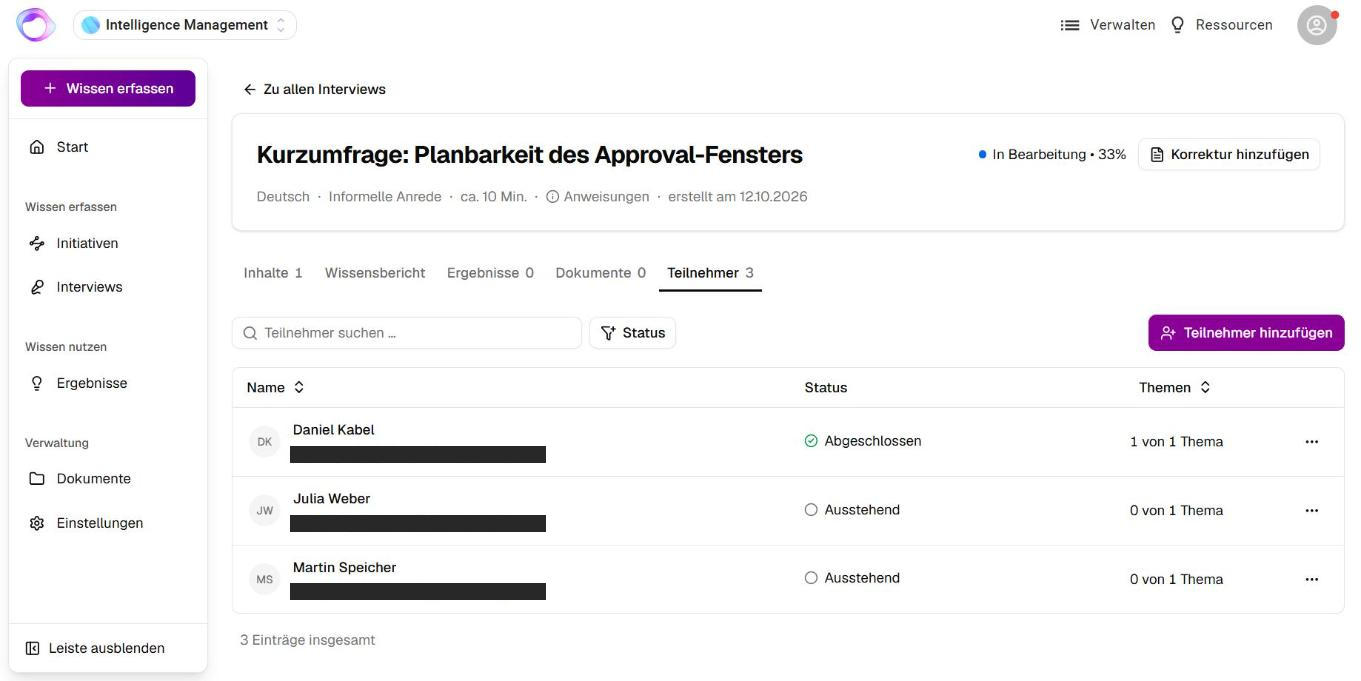
### Step 2: Add participants
1. Click **Add participant**.
2. Choose **Select internal** for a colleague with an account, or **Invite external** with first name, last name and email address (if enabled).
3. Enter the person's role.
The invitation is sent by email right away. People with an account open the interview signed in; external people get a personal link that works without an account.
### Step 3: Remind a person
1. Open the three-dot menu in the person's row and choose **Remind**.
2. Add a **Personal message** if you like (up to 1,000 characters).
3. Click **Send reminder**.
You also find **Remind** on Home under **Your open items** and in the email you receive when a person makes no progress.

### Step 4: Use further actions
- **Resend invitation:** sends the original invitation again.
- **Copy invitation link:** copies the personal link so you can send it another way.
- **Copy transcript:** copies the conversation so far to the clipboard.
- **Mark as completed:** ends the participation early. Open questions stay unanswered, and the knowledge report is built from what was said. This cannot be undone.
- **Remove participant:** cancels the invitation and deletes all of this person's data for the interview. A booked meeting is cancelled. This cannot be undone.
### How automatic reminders work
If automatic reminders were enabled when the interview was created (the default):
1. A participant with open topics who has not been active for 3 days gets a reminder, no earlier than 3 days after the invitation.
2. Up to 3 reminders follow, 3 days apart. The third says that the people responsible will be informed.
3. If the person stays inactive for 3 more days, the initiative's managers or the interview's creator receive an email with a button to remind them.
Reminders go out between 8:00 and 18:00. A personal reminder restarts the 3 days but does not count toward the automatic ones. A booked meeting holds reminders back until 2 hours after it; a missed meeting triggers a reminder straight away.
---
### Frequently asked questions
**A person didn't receive the invitation. What can I do?**
Ask the person to check their spam folder. Then use **Resend invitation**, or copy the link with **Copy invitation link** and send it another way.
**May I pass on an external person's link?**
No. Whoever holds the link can take that person's interview. Only send it to the invited person.
**Why can't I use “Mark as completed” right now?**
The person needs some progress first, and it doesn't work while the interview is running. Wait until the active session has ended.
**Can I remind myself?**
No. Reminders are only for other participants who have not completed.
---
**Questions?** Send us a message, we are happy to help!
- [Intelligence Management](https://help.omnora.com/en/help-center/intelligence-management?hsLang=en#main-content)
- [Capture knowledge](https://help.omnora.com/en/help-center/intelligence-management?hsLang=en#capture-knowledge)
- [Transfer knowledge](https://help.omnora.com/en/help-center/intelligence-management?hsLang=en#transfer-knowledge)
- [Administration](https://help.omnora.com/en/help-center/intelligence-management?hsLang=en#administration)
- [Authoring Automation](https://help.omnora.com/en/help-center/authoring-automation?hsLang=en#main-content)
- [Create](https://help.omnora.com/en/help-center/authoring-automation?hsLang=en#create)
- [Edit](https://help.omnora.com/en/help-center/authoring-automation?hsLang=en#edit)
- [Roll out](https://help.omnora.com/en/help-center/authoring-automation?hsLang=en#roll-out)
- [Administration](https://help.omnora.com/en/help-center/authoring-automation?hsLang=en#administration)
- [Legal Notice](https://omnora.com/en/imprint)
- [Privacy Policy](https://omnora.com/en/privacy)
- [Terms of Use](https://omnora.com/en/terms-of-use)
- [Terms and Conditions](https://omnora.com/en/terms)
[](https://omnora.com/de/?hsLang=en)
Omnora GmbH
Gutleutstraße 163-167
60327 Frankfurt am Main
Germany
[mailto:support@omnora.com](mailto:support@omnora.com)
© 2026 Omnora GmbH