---
title: Create and manage interviews
description: "Create and manage interviews in Intelligence Management: basics, AI questionnaire, participants, editing content and documents, corrections, scheduling, cloning and deleting."
---
[Skip to content](https://help.omnora.com/en/help-center/intelligence-management-interviews#main-content)
- [English](https://help.omnora.com/en/help-center/intelligence-management-interviews)
- [Deutsch](https://help.omnora.com/de/help-center/intelligence-management-interviews)
English
Show submenu for translations
Open main navigation
Close main navigation
- - [English](https://help.omnora.com/en/help-center/intelligence-management-interviews)
- [Deutsch](https://help.omnora.com/de/help-center/intelligence-management-interviews)
English
Show submenu for translations
What do you want to know?
- There are no suggestions because the search field is empty.
1. [Omnora Help Center](https://help.omnora.com/en/help-center?hsLang=en)
2. [Intelligence Management](https://help.omnora.com/en/help-center/intelligence-management?hsLang=en)
3. [Capture knowledge](https://help.omnora.com/en/help-center/intelligence-management?hsLang=en#capture-knowledge)
November 17, 2026
# Create and manage interviews
## Create a single AI interview with a questionnaire, invite participants and later edit, schedule, clone or delete it.
### Overview
You create a single interview outside an initiative, for example for a clearly defined topic. Each invited person receives an email and takes the interview in the browser.
If **Create interview** is not active in the list, create interviews inside an initiative.
### Step 1: Set the basics
1. Open **Interviews** in the sidebar and click **Create interview**.
2. Enter the **Topic** and add instructions if needed.
3. Attach matching documents from the library.
4. Check language, **Form of address** and automatic reminders in the **Advanced settings**.
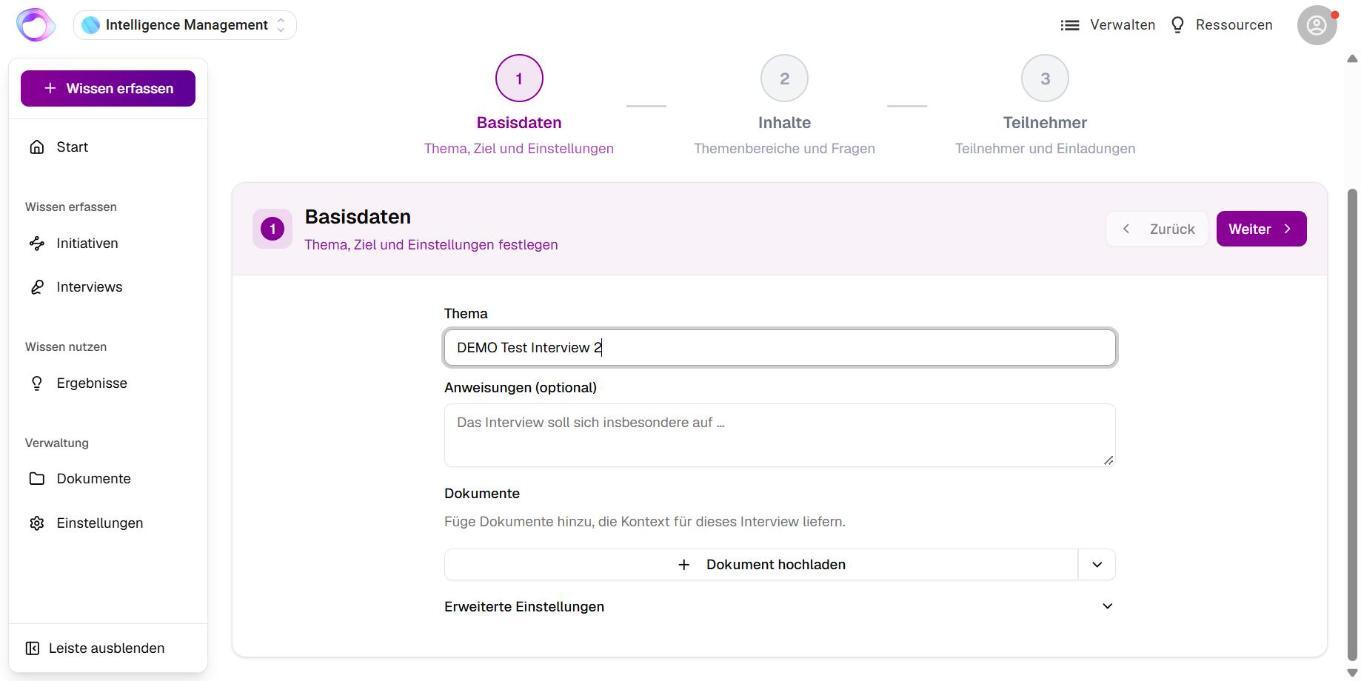

💡 Attach important documents here. The AI interviewer knows them before the conversation and asks targeted questions.
### Step 2: Create the content
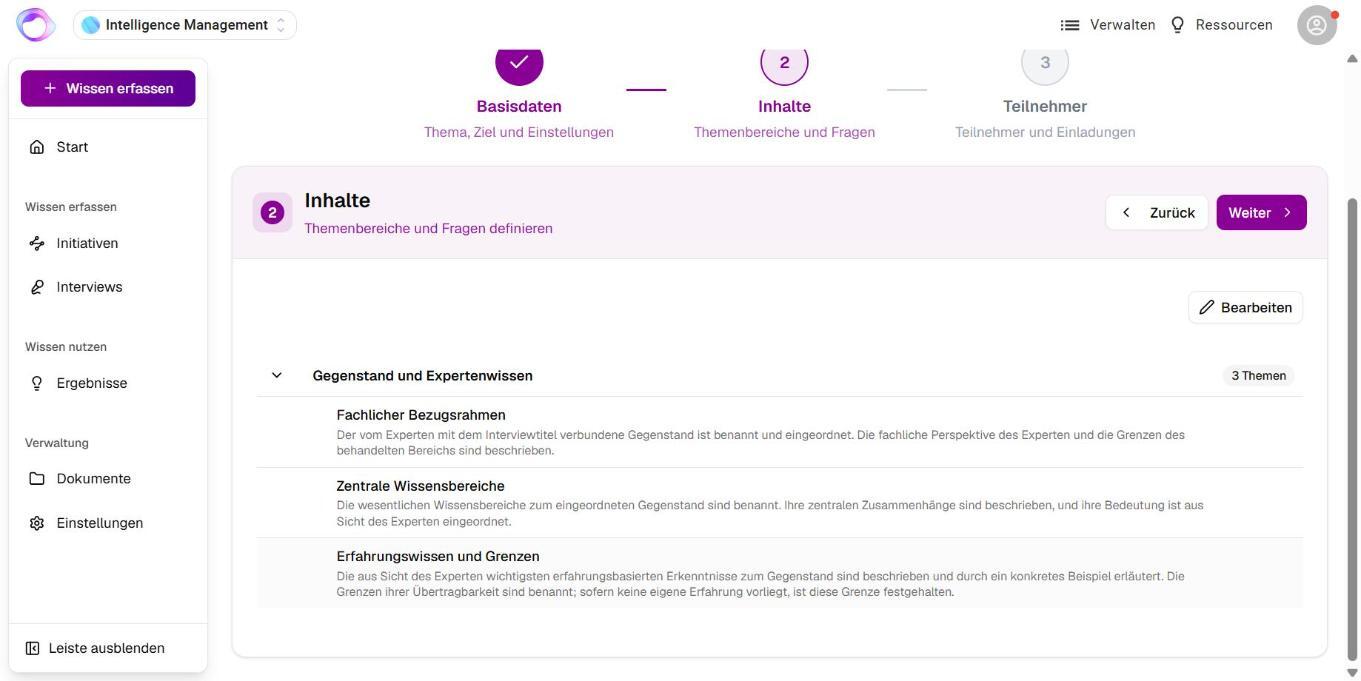
1. Click **Generate questionnaire with AI** or add topic areas and topics yourself.
2. Review the suggestions and adjust them with **Edit**.
### Step 3: Invite participants
1. Click **Add participant**.
2. Choose **Select internal** for a person with an account or **Invite external** for a person without one. Enter the person's role in each case.
3. Click **Create Interview and send invitations**.

Without participants you click **Create interview** and add participants later on the details page.
### Step 4: Follow progress
On the details page, the **Participants** tab shows who has started or completed the interview. There you remind people who have not finished. After each completed conversation you find the **knowledge report** and can create **Results**.

### Edit an interview afterwards
The person who created the interview and users with the Manager role can edit it. You find interviews of an initiative in the initiative's **Interviews** tab.
#### Find interviews
Under **Interviews**, search by topic and filter with **Assigned to me**, **Participants** and **Status**.

#### Adjust the content
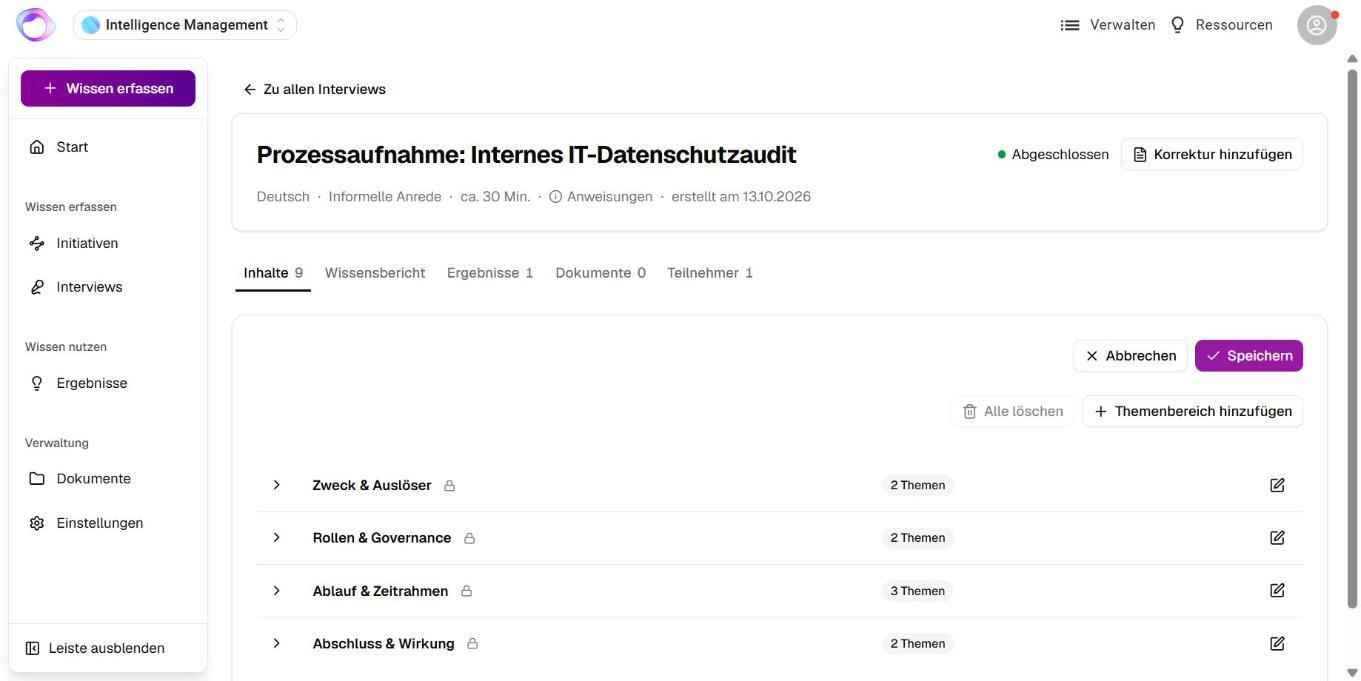
1. Open the interview and the **Content** tab.
2. Click **Edit**. Change, add, reorder or delete topic areas and topics, then save.
Each topic needs a title and **Completion criteria** that describe when it has been covered well enough.
#### Add documents
In the **Documents** tab you attach up to 15 files or remove them.
#### Add corrections
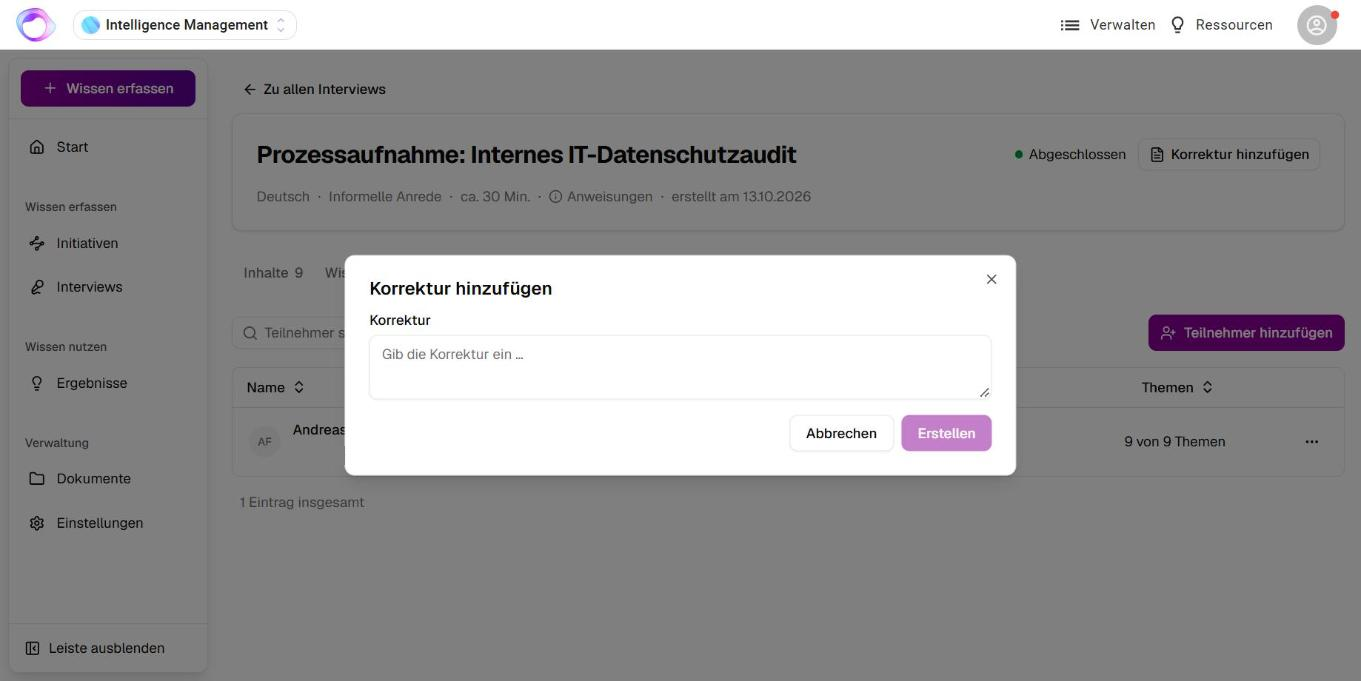
If something is missing or wrong in a completed interview, click **Add correction** and describe the correction in your own words. It is used in every result created afterwards.
#### Clone or delete
- **Clone** copies topic, instructions, language, form of address and questionnaire into a new interview. Participants and documents are not copied.
- **Delete Interview** removes the interview with all answers and cancels booked meetings. This cannot be undone.
---
### Frequently asked questions
**How many people can I invite to an interview?**
Up to 10 participants per interview. Each email address can be invited only once.
**I can't invite other people. Why?**
This depends on your role and on what is enabled for your organization. Contact your Omnora contact person.
**Can I switch off automatic reminders later?**
No. You set this when you create the interview and cannot change it afterwards.
**Which languages can interviews be held in?**
German and English by default. Further languages depend on what is enabled for your organization.
**Why can't I edit a topic?**
A participant has already covered it. Then it is locked.
**How long does an interview take?**
Roughly 4 minutes per topic plus 5 minutes for opening and closing. You see the estimated duration in the interview details.
**Can I book a meeting for a participant?**
Yes, if you may edit the interview or are a manager of the initiative. Click **Schedule meeting** in the interview details; the participant receives the calendar invitation.
**A planned interview doesn't fit. What can I do?**
**Decline suggestion** declines an interview Omnora planned, with a reason. Omnora then plans again.
---
**Questions?** Send us a message, we are happy to help!
- [Intelligence Management](https://help.omnora.com/en/help-center/intelligence-management?hsLang=en#main-content)
- [Capture knowledge](https://help.omnora.com/en/help-center/intelligence-management?hsLang=en#capture-knowledge)
- [Transfer knowledge](https://help.omnora.com/en/help-center/intelligence-management?hsLang=en#transfer-knowledge)
- [Administration](https://help.omnora.com/en/help-center/intelligence-management?hsLang=en#administration)
- [Authoring Automation](https://help.omnora.com/en/help-center/authoring-automation?hsLang=en#main-content)
- [Create](https://help.omnora.com/en/help-center/authoring-automation?hsLang=en#create)
- [Edit](https://help.omnora.com/en/help-center/authoring-automation?hsLang=en#edit)
- [Roll out](https://help.omnora.com/en/help-center/authoring-automation?hsLang=en#roll-out)
- [Administration](https://help.omnora.com/en/help-center/authoring-automation?hsLang=en#administration)
- [Legal Notice](https://omnora.com/en/imprint)
- [Privacy Policy](https://omnora.com/en/privacy)
- [Terms of Use](https://omnora.com/en/terms-of-use)
- [Terms and Conditions](https://omnora.com/en/terms)
[](https://omnora.com/de/?hsLang=en)
Omnora GmbH
Gutleutstraße 163-167
60327 Frankfurt am Main
Germany
[mailto:support@omnora.com](mailto:support@omnora.com)
© 2026 Omnora GmbH