---
title: Create and manage interviews
description: "Create and manage interviews in Intelligence Management: basics, AI questionnaire, participants, editing content and documents, corrections, scheduling, cloning and deleting."
---
[Skip to content](https://help.omnora.com/en/help-center/intelligence-management-interviews#main-content)
- [English](https://help.omnora.com/en/help-center/intelligence-management-interviews)
- [Deutsch](https://help.omnora.com/de/help-center/intelligence-management-interviews)
English
Show submenu for translations
Open main navigation
Close main navigation
- - [English](https://help.omnora.com/en/help-center/intelligence-management-interviews)
- [Deutsch](https://help.omnora.com/de/help-center/intelligence-management-interviews)
English
Show submenu for translations
What do you want to know?
- There are no suggestions because the search field is empty.
1. [Omnora Help Center](https://help.omnora.com/en/help-center?hsLang=en)
2. [Intelligence Management](https://help.omnora.com/en/help-center/intelligence-management?hsLang=en)
3. [Capture knowledge](https://help.omnora.com/en/help-center/intelligence-management?hsLang=en#capture-knowledge)
October 28, 2026
# Create and manage interviews
## Create a single AI interview with a questionnaire, invite participants and later edit, schedule, clone or delete it.
### Overview
You create a single interview outside an initiative, for example for a clearly defined topic. An assistant takes you through three steps: **Basics**, **Content** and **Participants**. Each person then receives an invitation by email and can take the interview in the browser.
Single interviews are available depending on what is enabled for your organization. If **Create interview** is not active in the list, create interviews inside an initiative.
### Step 1: Set the basics
1. Open **Interviews** in the sidebar and click **Create interview**.
2. Enter the **Topic** and add instructions if needed.
3. Attach matching documents from the library.
4. Check the **Advanced settings**: language, **Form of address**, automatic reminders and, if enabled, screen sharing.
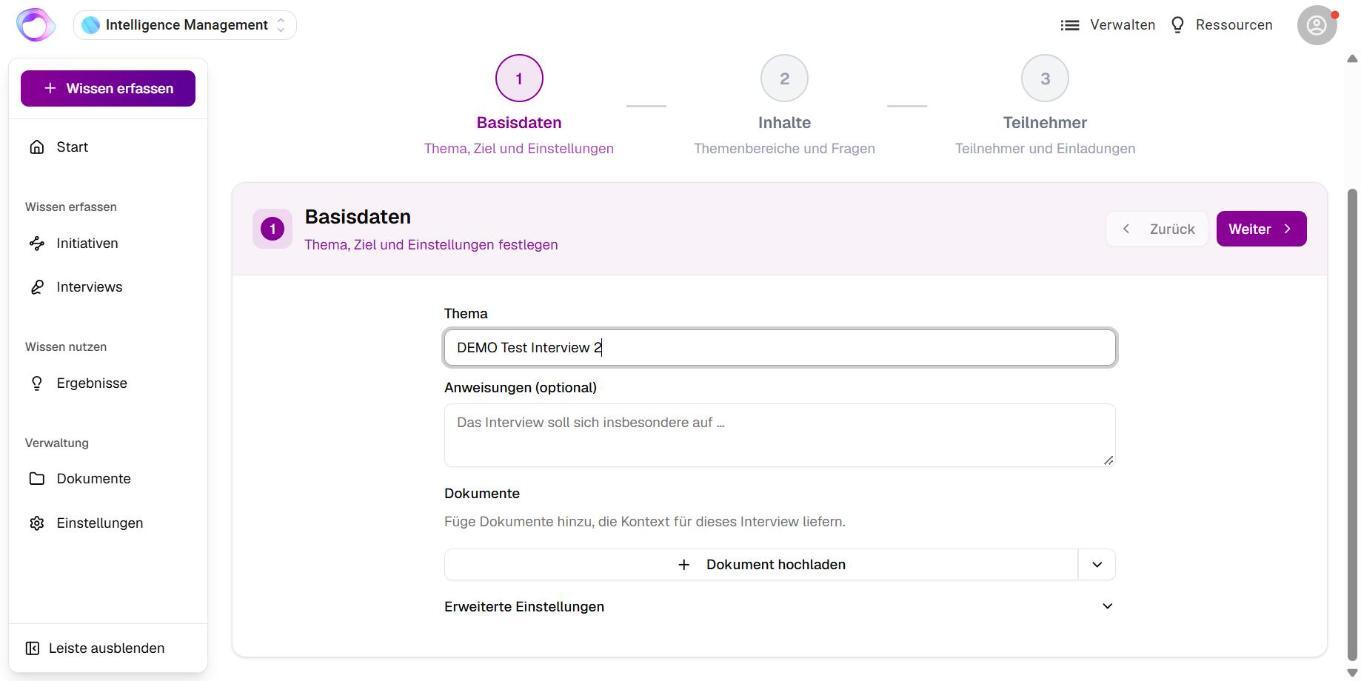

💡 Attach important documents here. The AI interviewer knows them before the conversation and asks targeted questions.
### Step 2: Create the content
1. Click **Generate questionnaire with AI** or add topic areas and topics yourself.
2. Review the suggestions and adjust them with **Edit**.
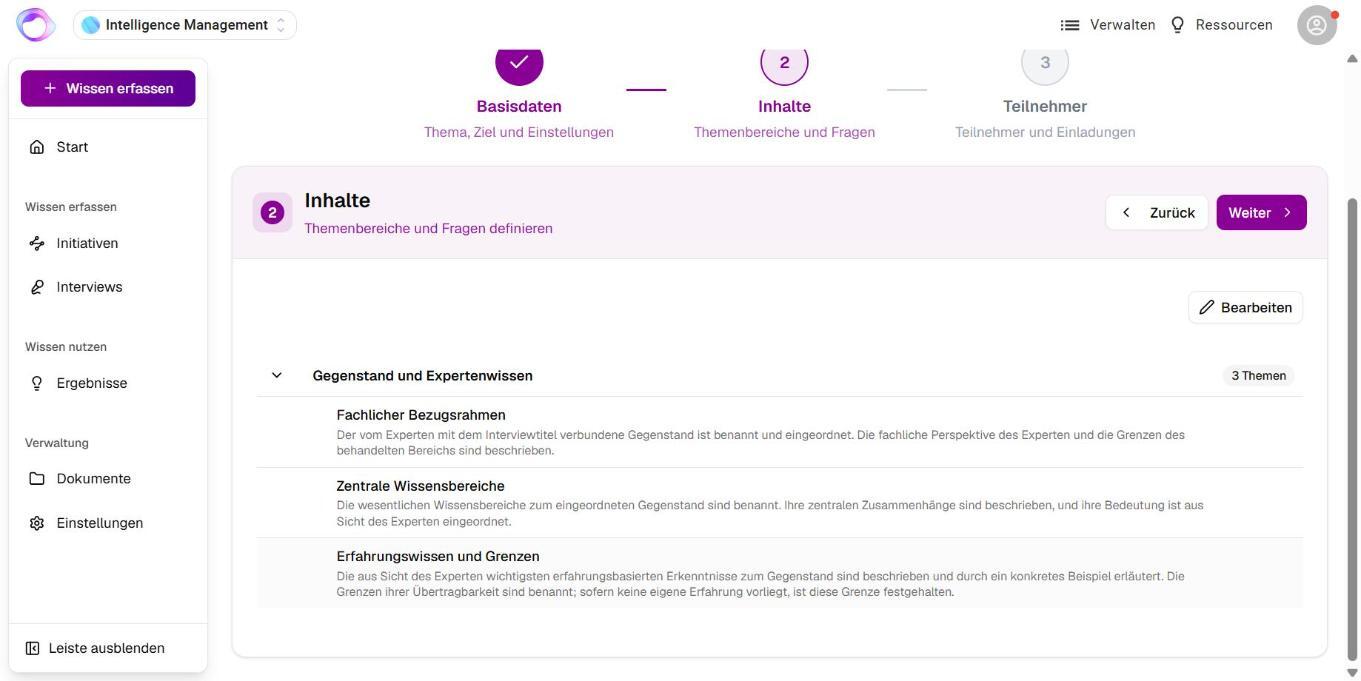
The number of topics determines the estimated duration of the interview.
### Step 3: Invite participants
1. Click **Add participant**.
2. Choose **Select internal** for a person with an account or **Invite external** for a person without one (if enabled). Enter the person's role in each case.
3. Click **Create Interview and send invitations**.

Without participants the button reads **Create interview**. You then add participants later on the details page.
### Step 4: Follow progress
On the interview's details page, the **Participants** tab shows who has started or completed it, and you can remind people who have not finished. After each completed conversation you find the **knowledge report** and can create **Results**.

### Edit an interview afterwards
After creating an interview you can keep adjusting it, as long as participants have not covered the topics concerned. The person who created the interview and users with the Manager role can manage it. You find interviews that belong to an initiative in the initiative's **Interviews** tab.
#### Find interviews
- Under **Interviews**, search by topic and filter with **Assigned to me**, **Participants** and **Status**.
- The status shows whether nobody has started yet, the interview is running (with progress in percent) or all participants have finished.
- Interviews Omnora planned in an initiative carry the mark **AI Suggestion** with its reasoning.

#### Adjust the content
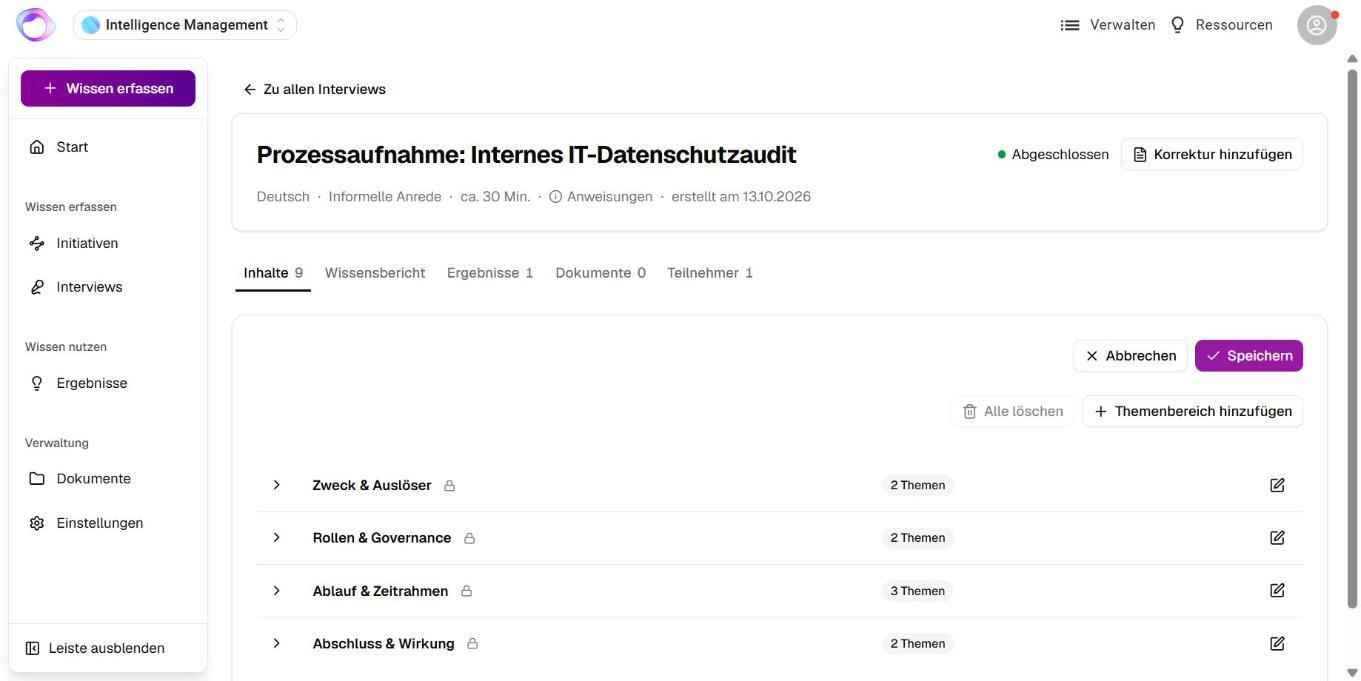
1. Open the interview and the **Content** tab.
2. Click **Edit**. Change, add, reorder or delete topic areas and topics, then save.
Each topic needs a title and **Completion criteria** that describe when the topic has been covered well enough. Topics a participant has already covered are locked. Changes apply to everyone who has not covered the topic yet.
#### Add documents
In the **Documents** tab you attach further files (up to 15) or remove them. A removed document stays in the library. The AI interviewer uses attached documents for more targeted questions but never treats them as the participant's answer.
#### Add corrections
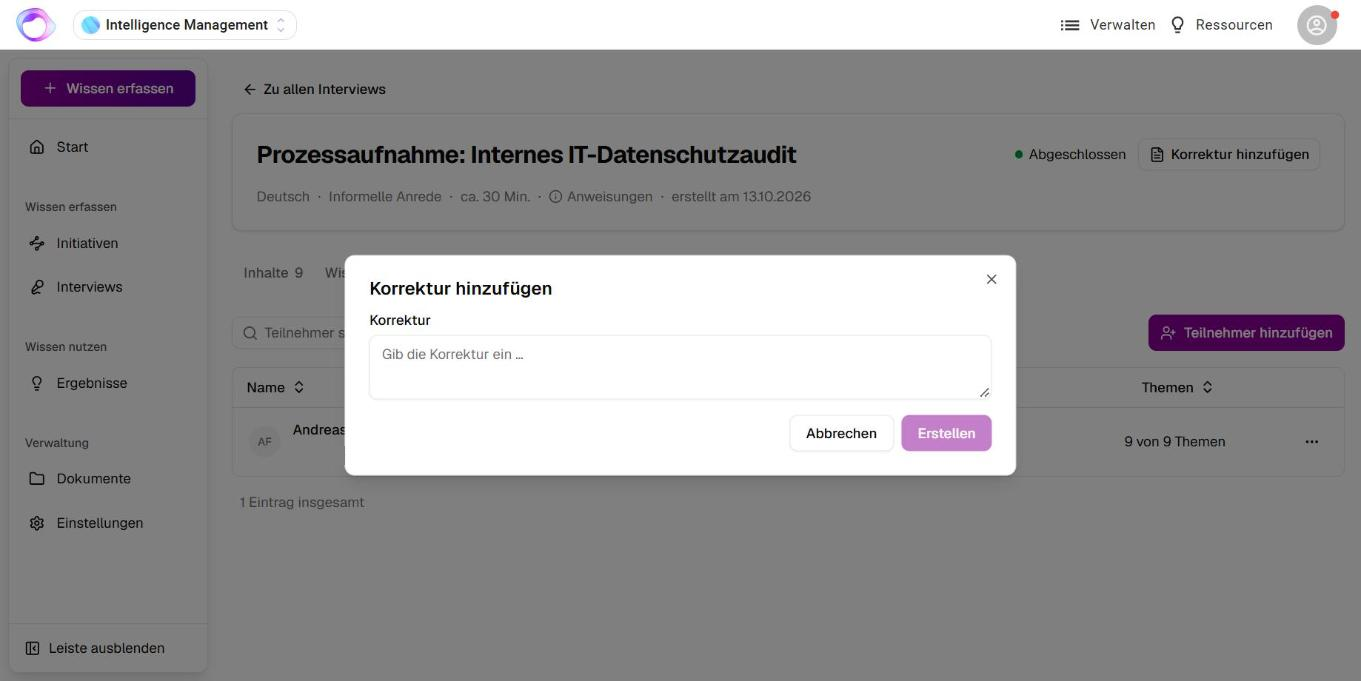
If an interview is completed and something is missing or wrong, click **Add correction** and describe the correction in your own words. Corrections are used in every result created afterwards.
#### Schedule a meeting
Depending on your organization's setup, a participant books their interview as a calendar meeting: with **Schedule meeting** in the invitation email, on the interview's start page or in the interview details. They choose date and time and receive a calendar invitation with the link to start. **Change meeting** moves it. Automatic reminders wait until 2 hours after the meeting.
#### Clone or delete
- **Clone** copies topic, instructions, language, form of address and questionnaire into a new interview. Participants and documents are not copied.
- **Delete Interview** removes the interview with all participants' answers and cancels booked meetings. This cannot be undone.
---
### Frequently asked questions
**How many people can I invite to an interview?**
Up to 10 participants per interview. Each email address can be invited only once.
**I can't invite other people. Why?**
Whether you can create interviews for others and invite people depends on your role and on what is enabled for your organization. Contact your Omnora contact person.
**Can I switch off automatic reminders later?**
No. You set this when you create the interview. It cannot be changed afterwards.
**Which languages can interviews be held in?**
German and English by default. Further languages depend on what is enabled for your organization.
**Why can't I edit a topic?**
A participant has already covered it. Such topics are locked so that answers and questions match.
**How long does an interview take?**
The estimated duration follows the number of topics, roughly 4 minutes per topic plus 5 minutes for opening and closing. You see it in the interview details.
**Can I book a meeting for a participant?**
No. The participant books the meeting themselves.
**A planned interview doesn't fit. What can I do?**
**Decline suggestion** declines an interview Omnora planned, with a reason. Omnora then plans again.
---
**Questions?** Send us a message, we are happy to help!
- [Intelligence Management](https://help.omnora.com/en/help-center/intelligence-management?hsLang=en#main-content)
- [Capture knowledge](https://help.omnora.com/en/help-center/intelligence-management?hsLang=en#capture-knowledge)
- [Transfer knowledge](https://help.omnora.com/en/help-center/intelligence-management?hsLang=en#transfer-knowledge)
- [Administration](https://help.omnora.com/en/help-center/intelligence-management?hsLang=en#administration)
- [Authoring Automation](https://help.omnora.com/en/help-center/authoring-automation?hsLang=en#main-content)
- [Create](https://help.omnora.com/en/help-center/authoring-automation?hsLang=en#create)
- [Edit](https://help.omnora.com/en/help-center/authoring-automation?hsLang=en#edit)
- [Roll out](https://help.omnora.com/en/help-center/authoring-automation?hsLang=en#roll-out)
- [Administration](https://help.omnora.com/en/help-center/authoring-automation?hsLang=en#administration)
- [Legal Notice](https://omnora.com/en/imprint)
- [Privacy Policy](https://omnora.com/en/privacy)
- [Terms of Use](https://omnora.com/en/terms-of-use)
- [Terms and Conditions](https://omnora.com/en/terms)
[](https://omnora.com/de/?hsLang=en)
Omnora GmbH
Gutleutstraße 163-167
60327 Frankfurt am Main
Germany
[mailto:support@omnora.com](mailto:support@omnora.com)
© 2026 Omnora GmbH