---
title: AI voices & avatars
description: "AI voices and avatars in Authoring Automation: choosing a speaker, Pro, Expressive, multilingual and standard voices, speed, pauses and pronunciation."
---
[Skip to content](https://help.omnora.com/en/help-center/ai-voices-avatars#main-content)
- [English](https://help.omnora.com/en/help-center/ai-voices-avatars)
- [Deutsch](https://help.omnora.com/de/help-center/ki-stimmen-avatare)
English
Show submenu for translations
Open main navigation
Close main navigation
- - [English](https://help.omnora.com/en/help-center/ai-voices-avatars)
- [Deutsch](https://help.omnora.com/de/help-center/ki-stimmen-avatare)
English
Show submenu for translations
What do you want to know?
- There are no suggestions because the search field is empty.
1. [Omnora Help Center](https://help.omnora.com/en/help-center?hsLang=en)
2. [Authoring Automation](https://help.omnora.com/en/help-center/authoring-automation?hsLang=en)
3. [Edit](https://help.omnora.com/en/help-center/authoring-automation?hsLang=en#edit)
November 24, 2026
# AI voices & avatars
## Choose avatar, voice and speed and control pauses and pronunciation.
### Overview
Every scene can have an AI speaker: a voice that speaks your speaker text, with or without a visible avatar. New scenes automatically get the avatar and voice from your brand kit.
### Choose a voice and avatar
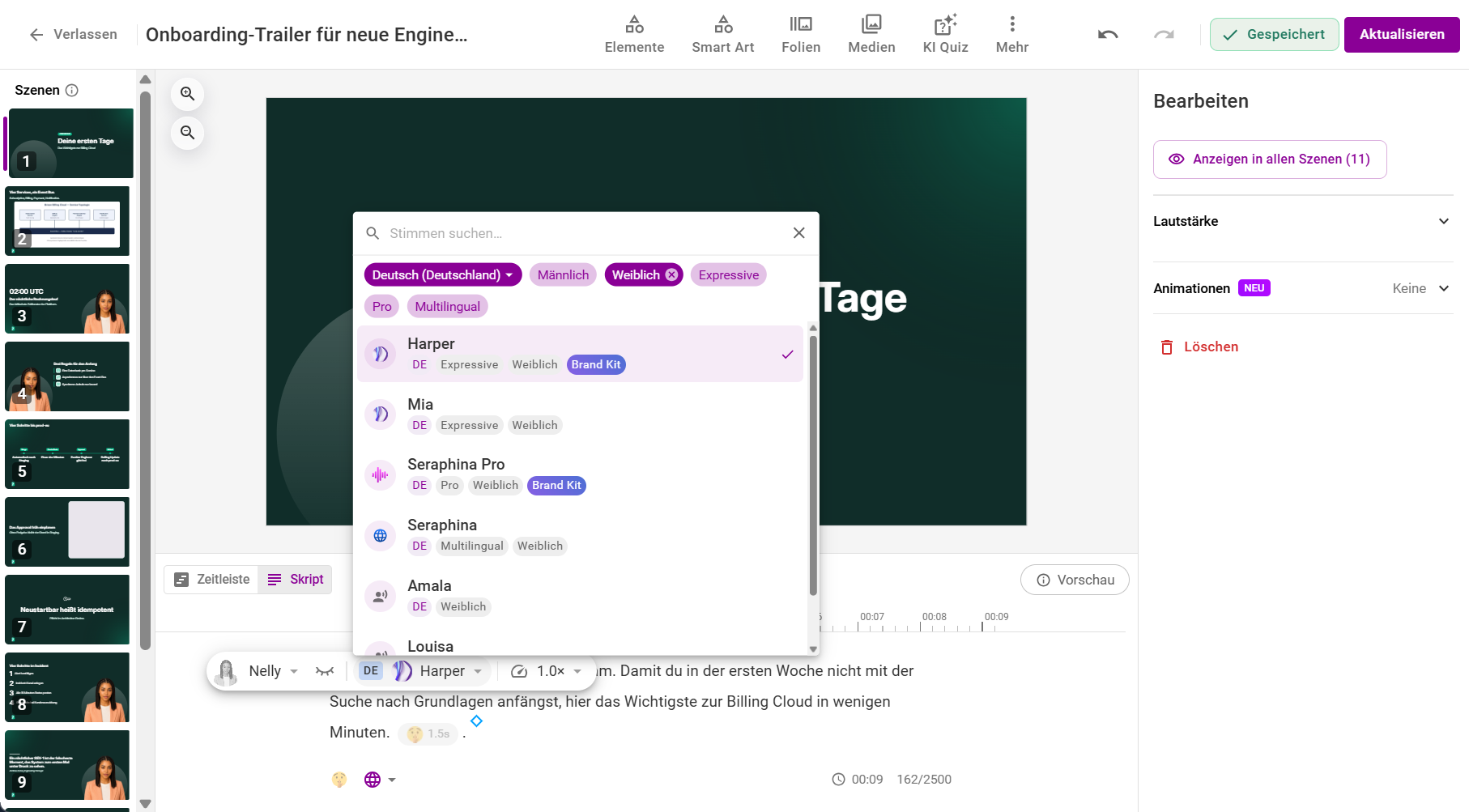
1. In the editor's **Script** view, click the speaker to the left of the text. Or select the avatar on the canvas.
2. Open the voice selection. Search with **Search voices** or filter by language, male, female and voice type.
3. Listen to a voice with the play icon and click it.
4. If needed, set the speed from x0.80 to x1.20.
5. Choose an avatar under **Premium Avatars** or **Standard Avatars**, or use “Voice only”.
6. Listen to the change with **Generate preview**, then click **Update video**.

How to place the avatar and choose its appearance is in “[Layout and avatar placement](https://help.omnora.com/en/help-center/layouts?hsLang=en)”.
### Publish your changes
Changes to speaker text, voice or avatar are a draft at first. Viewers see the published version until you click **Update video**. Only the changed scenes are regenerated, and the video keeps its link.
- **Apply to all scenes:** after a change to avatar, voice or speed, this notice appears briefly. One click copies the speaker to all scenes. A hidden avatar stays hidden.
- **Leave:** if you want to discard your changes, return the video here to the last published version.
### The voice sets the language
Every voice shows its language. The scene is spoken in that language. There is no separate language field.
- **Pro voices** sound especially natural and speak every language. They stress words slightly differently each time.
- **Expressive voices** pronounce English terms in German text particularly well.
- **Multilingual voices** speak every language and let you set the pronunciation of single words.
- **Standard voices** speak only their own language.
### Pauses and pronunciation
- **Pauses:** place the cursor in the text and add a pause. A pause lasts 0 to 20 seconds; the default is 1 second.
- **Pronunciation:** with a Pro or multilingual voice, mark a word and choose its language. German, English (UK and US), French and Spanish are possible.
### Tips for good pronunciation
Try different spellings in the speaker text and listen to the result with **Generate preview**.
- **Spell out abbreviations:** separate the letters with hyphens, for example “E-R-P”.
- **Write it the way it sounds:** for example “Loomeeka” instead of “Lumiqa”.
- **Split terms:** write compound terms separately or with a hyphen, for example “cloud-portal”.
- **Stress words:** put a word in quotation marks so it is stressed more.
- **Use punctuation:** a comma adds a short breath. A question mark raises the voice at the end.
- **Write out numbers and symbols:** for example “version four point two” instead of “version 4.2”.
- **Pause at the end:** place the pause right after the last word and the full stop only after it.
### Add proper names to the pronunciation lexicon
If the voice mispronounces a company, product or person's name, we are happy to add it to our pronunciation lexicon. Send us the word in the chat and how it should sound, for example “Lumiqa, pronounced Loo-mee-ka, stress on the ee”.
- The lexicon applies to German narration with multilingual voices and Pro voices. Multilingual voices apply it most reliably.
- It can take 1 to 2 days until a new entry takes effect.
- We don't store numbers or general words. The tips above help with those.
- In existing videos, briefly choose another voice, switch back and click **Update video**.
---
### Frequently asked questions
**How long can a speaker text be?**
At least 10 and up to 2,500 characters per speaker text. Spread longer texts over several scenes.
**A word is mispronounced. What can I do?**
With Pro and multilingual voices, mark foreign-language terms and choose the pronunciation language. If that doesn't help, use the tips above or have proper names added to the pronunciation lexicon.
**What is the difference between standard and ElevenLabs voices?**
You find ElevenLabs voices in the **ElevenLabs** tab. They sound especially natural and speak the language of your speaker text. Pauses, the pronunciation language for single words and the pronunciation lexicon are not available for them at the moment. If you need these, choose a standard voice for the scene. ElevenLabs and Expressive voices only work with premium avatars.
**Why does the Pro voice sound slightly different each time?**
Pro voices work with variance, which sounds more natural. If a spot doesn't fit, generate it again with **Generate preview**.
**How do I change the language of a scene?**
Choose a voice in the language you want. Existing videos sound as before until the narration is generated again.
**How do I change the voice in all scenes at once?**
Change the voice in one scene, click **Apply to all scenes** and then **Update video**. Keep the editor open until the update has started.
**I switch the avatar. Why does the voice change?**
If the new avatar has a different gender, a matching voice is chosen automatically. You can pick any voice again afterwards.
**Are there custom avatars for our organization?**
No. There are no custom or customer-specific avatars.
**My language is missing. What can I do?**
You can request missing languages from support.
---
**Questions?** Send us a message, we are happy to help!
- [Intelligence Management](https://help.omnora.com/en/help-center/intelligence-management?hsLang=en#main-content)
- [Capture knowledge](https://help.omnora.com/en/help-center/intelligence-management?hsLang=en#capture-knowledge)
- [Transfer knowledge](https://help.omnora.com/en/help-center/intelligence-management?hsLang=en#transfer-knowledge)
- [Administration](https://help.omnora.com/en/help-center/intelligence-management?hsLang=en#administration)
- [Authoring Automation](https://help.omnora.com/en/help-center/authoring-automation?hsLang=en#main-content)
- [Create](https://help.omnora.com/en/help-center/authoring-automation?hsLang=en#create)
- [Edit](https://help.omnora.com/en/help-center/authoring-automation?hsLang=en#edit)
- [Roll out](https://help.omnora.com/en/help-center/authoring-automation?hsLang=en#roll-out)
- [Administration](https://help.omnora.com/en/help-center/authoring-automation?hsLang=en#administration)
- [Legal Notice](https://omnora.com/en/imprint)
- [Privacy Policy](https://omnora.com/en/privacy)
- [Terms of Use](https://omnora.com/en/terms-of-use)
- [Terms and Conditions](https://omnora.com/en/terms)
[](https://omnora.com/de/?hsLang=en)
Omnora GmbH
Gutleutstraße 163-167
60327 Frankfurt am Main
Germany
[mailto:support@omnora.com](mailto:support@omnora.com)
© 2026 Omnora GmbH