---
title: AI voices & avatars
description: "AI voices and avatars in Authoring Automation: choosing a speaker, Pro, Expressive, multilingual and standard voices, speed, pauses and pronunciation."
---
[Skip to content](https://help.omnora.com/en/help-center/ai-voices-avatars#main-content)
- [English](https://help.omnora.com/en/help-center/ai-voices-avatars)
- [Deutsch](https://help.omnora.com/de/help-center/ki-stimmen-avatare)
English
Show submenu for translations
Open main navigation
Close main navigation
- - [English](https://help.omnora.com/en/help-center/ai-voices-avatars)
- [Deutsch](https://help.omnora.com/de/help-center/ki-stimmen-avatare)
English
Show submenu for translations
What do you want to know?
- There are no suggestions because the search field is empty.
1. [Omnora Help Center](https://help.omnora.com/en/help-center?hsLang=en)
2. [Authoring Automation](https://help.omnora.com/en/help-center/authoring-automation?hsLang=en)
3. [Edit](https://help.omnora.com/en/help-center/authoring-automation?hsLang=en#edit)
November 9, 2026
# AI voices & avatars
## Choose avatar, voice and speed and control pauses and pronunciation.
### Overview
Every scene can have an AI speaker: a voice that speaks your speaker text, with or without a visible avatar. There are over 150 avatars and over 150 voices in many languages. New scenes automatically get the avatar and voice from your brand kit.
### Step 1: Open the speaker
In the editor's **Script** view, click the speaker to the left of the text, or select the avatar on the canvas. On the right you see the scene's avatar and voice. To a scene without a speaker you add one; in the **Media** tab you can also add a voice only.
### Step 2: Choose a voice
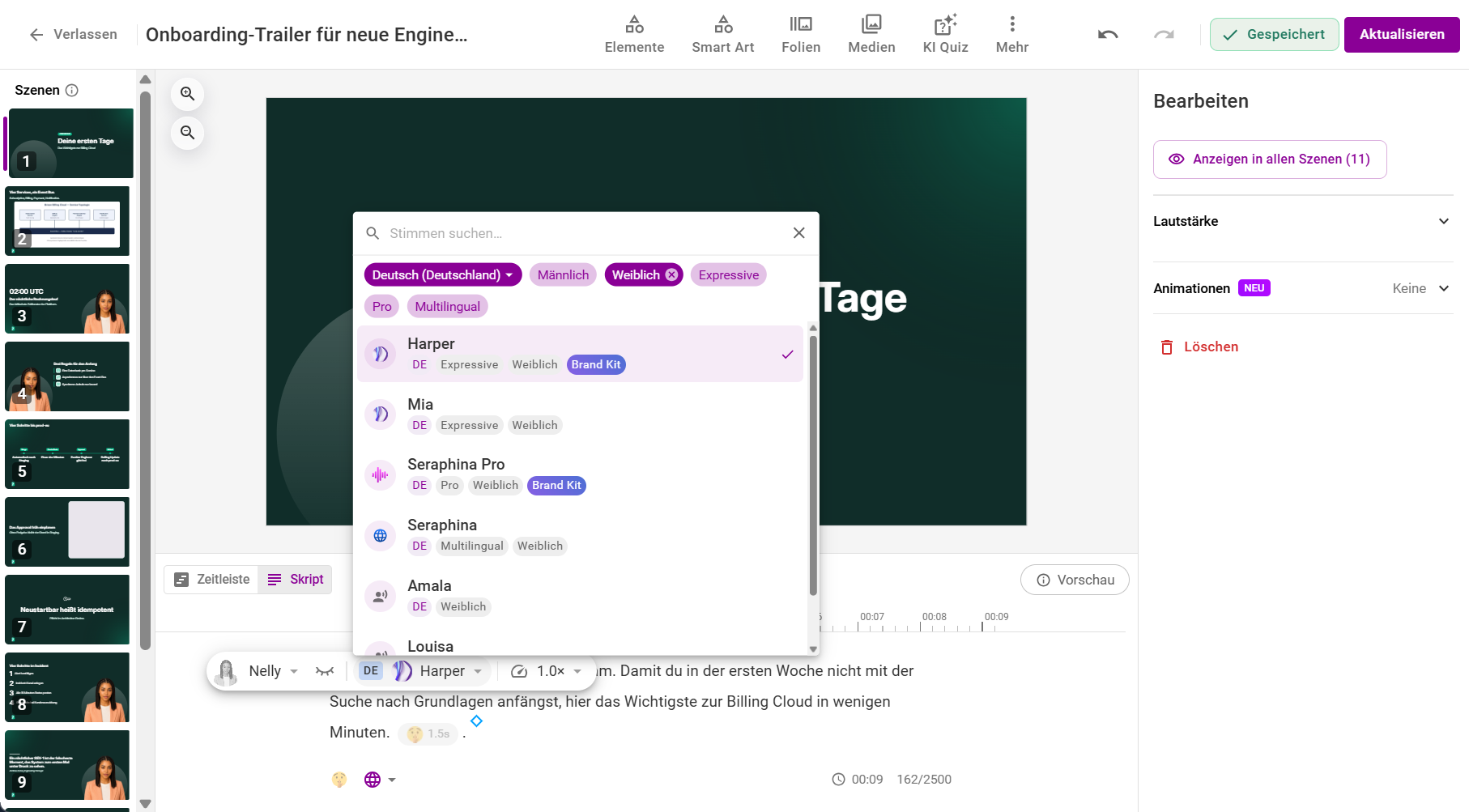
1. Open the voice selection. Search with **Search voices** or narrow the list by language. The most used languages German, English (US) and English (UK) come first. Filter further by male, female and voice type (**Expressive**, **Pro**, **Multilingual**). Voices from your Brand Kit are marked **Brand Kit**.
2. Listen to a sample with the play icon or the round picture of the voice.
3. Click the voice.
**The voice sets the language:** every voice shows its language, and the scene is spoken in that language. There is no separate language field. To have a scene spoken in another language, choose a voice of that language.
- **Pro voices** sound especially natural and speak every language. They stress words slightly differently each time.
- **Expressive voices** (new since October 2026) pronounce English terms in German text particularly well.
- **Multilingual voices** speak every language and let you set the pronunciation of single words.
- **Standard voices** speak only their own language.
### Step 3: Set the speed
Set the speed from x0.80 to x1.20.
### Step 4: Set pauses and pronunciation
- **Pauses:** place the cursor in the text and add a pause. Each pause can be 0 to 20 seconds; the default is 1 second.
- **Pronunciation:** with a Pro or multilingual voice, mark a word and choose the language it is spoken in, for example an English term in German text. German, English (UK and US), French and Spanish are possible.
- **Lexicon:** support adds proper names and abbreviations that should sound the same everywhere. Send us the word and how it should sound. Existing videos only pronounce the word anew after the next update.
### Step 5: Choose an avatar
Choose an avatar under **Premium Avatars** or **Standard Avatars**, or use “Voice only”. How to place, show and hide the avatar and choose its appearance and background is in “[Layout and avatar placement](https://help.omnora.com/en/help-center/layouts?hsLang=en)”.

### Step 6: Listen and apply
Listen to changes with **Generate preview**, then click **Update video**. Only changed speaker texts are regenerated.
---
### Frequently asked questions
**How long can a speaker text be?**
At least 10 and up to 2,500 characters per speaker text. Spread longer texts over several scenes.
**Why does the Pro voice sound slightly different each time?**
Pro voices work with variance. That sounds more natural but can bring small differences in stress and pronunciation.
**How do I change the voice in all scenes at once?**
Change the voice in one scene and use the notice **Apply to all**. See “[Edit AI videos](https://help.omnora.com/en/help-center/edit-ai-videos-afterwards?hsLang=en)”.
**Are there custom avatars for our organization?**
No. There are no custom or customer-specific avatars.
**How do I change the language of a scene?**
Choose a voice in the language you want. The language comes with the voice. Existing videos sound as before until the narration is generated again.
**My language is missing. What can I do?**
You can request missing languages from support.
---
**Questions?** Send us a message, we are happy to help!
- [Intelligence Management](https://help.omnora.com/en/help-center/intelligence-management?hsLang=en#main-content)
- [Capture knowledge](https://help.omnora.com/en/help-center/intelligence-management?hsLang=en#capture-knowledge)
- [Transfer knowledge](https://help.omnora.com/en/help-center/intelligence-management?hsLang=en#transfer-knowledge)
- [Administration](https://help.omnora.com/en/help-center/intelligence-management?hsLang=en#administration)
- [Authoring Automation](https://help.omnora.com/en/help-center/authoring-automation?hsLang=en#main-content)
- [Create](https://help.omnora.com/en/help-center/authoring-automation?hsLang=en#create)
- [Edit](https://help.omnora.com/en/help-center/authoring-automation?hsLang=en#edit)
- [Roll out](https://help.omnora.com/en/help-center/authoring-automation?hsLang=en#roll-out)
- [Administration](https://help.omnora.com/en/help-center/authoring-automation?hsLang=en#administration)
- [Legal Notice](https://omnora.com/en/imprint)
- [Privacy Policy](https://omnora.com/en/privacy)
- [Terms of Use](https://omnora.com/en/terms-of-use)
- [Terms and Conditions](https://omnora.com/en/terms)
[](https://omnora.com/de/?hsLang=en)
Omnora GmbH
Gutleutstraße 163-167
60327 Frankfurt am Main
Germany
[mailto:support@omnora.com](mailto:support@omnora.com)
© 2026 Omnora GmbH